



Skip to content
View in the app

A better way to browse. Learn more.

WRobot

A full-screen app on your home screen with push notifications, badges and more.

To install this app on iOS and iPadOS
  1. Tap the Share icon in Safari
  2. Scroll the menu and tap Add to Home Screen.
  3. Tap Add in the top-right corner.
To install this app on Android
  1. Tap the 3-dot menu (⋮) in the top-right corner of the browser.
  2. Tap Add to Home screen or Install app.
  3. Confirm by tapping Install.

Druid-Feral (bear) 1.1

(0 reviews)

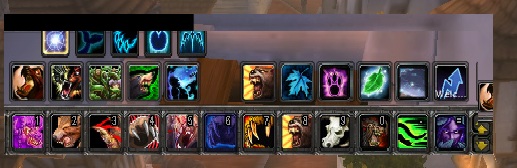
1 Screenshot

Hello, James duncan here with another fighting class the druid Feral (bear) MOP

Is calling GUARDIAN spec

Here you will find a pic of the way my keys are set up so you can bettter understand the way I play

thank you more updates to this spec will be released soon thank you

What's New in Version 1.1

Released

  • All of the druid bear active Healing spealls
  • are active once the player his a life percent
  • or the player comes across more then one NPC

User Feedback

Recommended Comments

Ohren

Elite user

Hmmm, keeps casting something that pulls it out of bear.

Oh check Mark of the Wild. The condition is Buff => Mark of the Wild => True. Needs to be false. :) After that, it's an awesome class. :)

Syrenthia

Members

O thank you . Ill fix

7Wolves

Members

Hey, tweaked yours a little to work for me. changed Bear form to Buff: True  (not it doesn't go in and out nonstop while trying to fight.)

Also changed Frenzied Regeneration to Health Percent: Smaller than 95% (priority 50) this way it casts it nonstop so every bit of rage is used, cause when it was on rage condition, never used this at all. These small 2 things changed the profile to completely perfect for me. now it kills without stopping.

7Wolves

Members

I also made a few other changes, infact, i changed every item in the list. I am uploading a profile with all the work i have done if you would like to see.

Account

Navigation

Search

Search

Configure browser push notifications

Chrome (Android)
  1. Tap the lock icon next to the address bar.
  2. Tap Permissions → Notifications.
  3. Adjust your preference.
Chrome (Desktop)
  1. Click the padlock icon in the address bar.
  2. Select Site settings.
  3. Find Notifications and adjust your preference.