

Skip to content
View in the app

A better way to browse. Learn more.

WRobot

A full-screen app on your home screen with push notifications, badges and more.

To install this app on iOS and iPadOS
  1. Tap the Share icon in Safari
  2. Scroll the menu and tap Add to Home Screen.
  3. Tap Add in the top-right corner.
To install this app on Android
  1. Tap the 3-dot menu (⋮) in the top-right corner of the browser.
  2. Tap Add to Home screen or Install app.
  3. Confirm by tapping Install.

lmd

Members
  • Joined

  • Last visited

  1. lmd commented on Bigmike's bug report in Bug Tracker
    After installing the program, all worked. Thank you very much.
  2. lmd commented on Bigmike's bug report in Bug Tracker
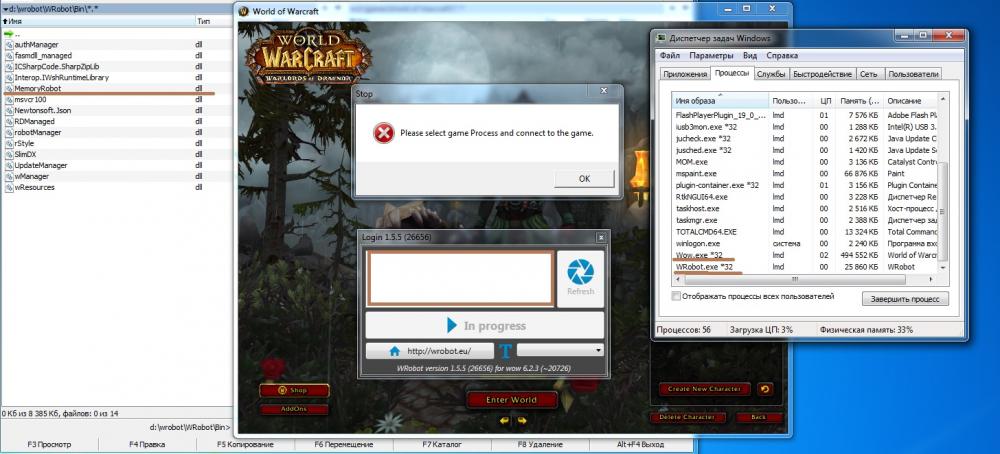
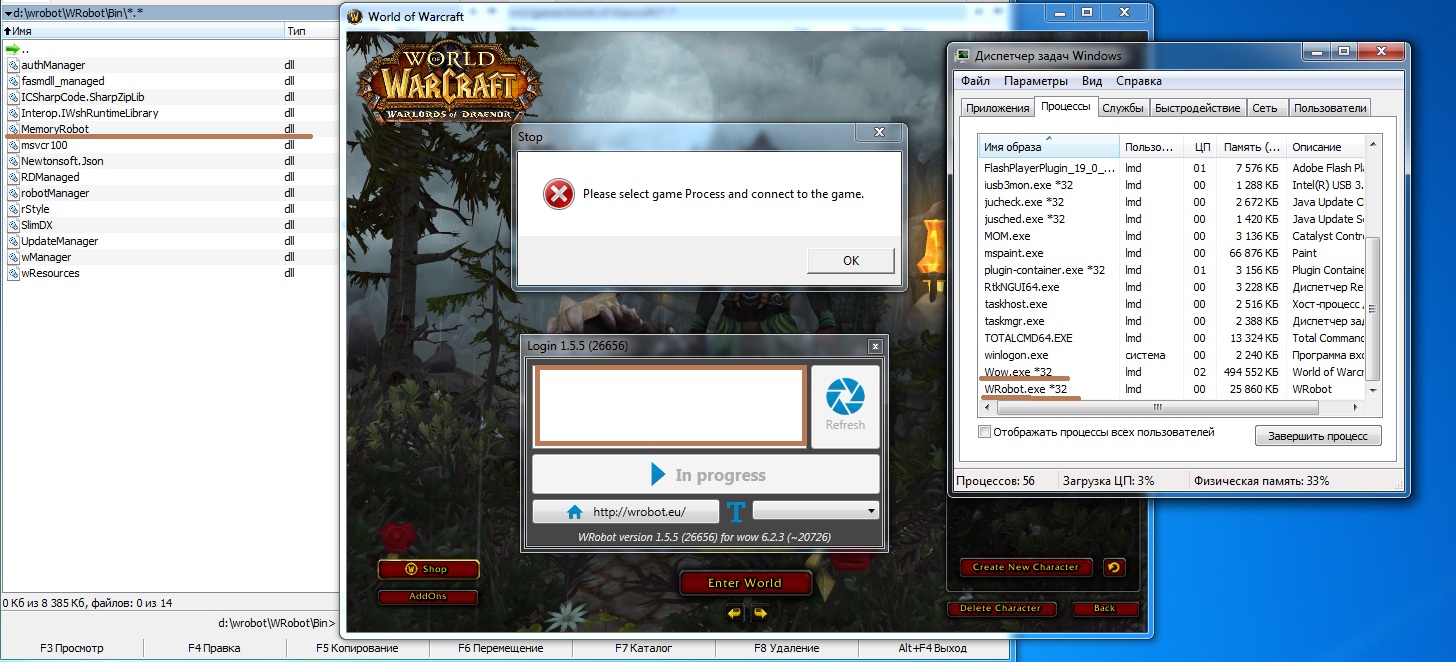
    This file is in the correct folder. It is shown in the screenshot. Try to install the recommended software. I write in the subject as soon as the result.
  3. lmd commented on Bigmike's bug report in Bug Tracker
    Hi, 1. I start WoW 2. I start WRobot WRobot ask me to select game Process..... So i quit the game and select wow 32bit process. The game start, i log in, i select Launch Bot and.....Wrobot ask me again to select game Process...... In the log file, writes the following: [E] 21:09:14 - RefreshProcessList()#1: System.IO.FileNotFoundException: Could not load file or assembly 'MemoryRobot.dll' or one of its dependencies. Не найден указанный модуль. File name: 'MemoryRobot.dll' at wManager.Wow.Memory.IsGoodVersion(Int32 processId) at WRobot.LoginWindow.EvaucJutu() 1 дек 2015 21H07.log.html
Account

Navigation

Search

Search

Configure browser push notifications

Chrome (Android)
  1. Tap the lock icon next to the address bar.
  2. Tap Permissions → Notifications.
  3. Adjust your preference.
Chrome (Desktop)
  1. Click the padlock icon in the address bar.
  2. Select Site settings.
  3. Find Notifications and adjust your preference.