

conne2
Members
-
Joined
-
Last visited
Everything posted by conne2
-
-
-
well the problem is solved so no support needed, thx anyway!
-
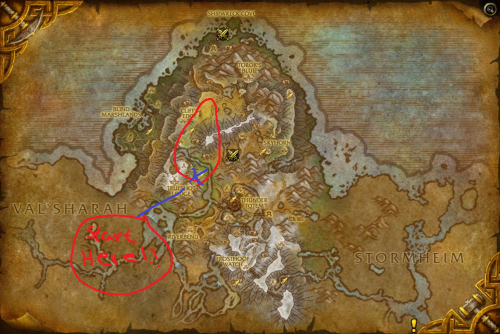 i Fine using no mount will make this profile better! I made this profile i have had a timer for it and i got 1000 Stonehide Leather per hour, i thought like why not share the profile for the community like why not, the profile works fine for me, let me know if you guys do have any issues, and PLS comment what you think about the profile and how much you guys got an hour. // Conne2 - StAY CoOL
 -
I just bought the WRobot1 month, and when i am in login, my login key works i think, but it's like freezing at login and it only says "in progress" Please could some one help me? BTW! i have no Antivirus activated. And i have red the "How to use" or "Read me" thing, and i have downloaded the requirements or i already have em.