Skip to content
View in the app

A better way to browse. Learn more.

WRobot

A full-screen app on your home screen with push notifications, badges and more.

To install this app on iOS and iPadOS
  1. Tap the Share icon in Safari
  2. Scroll the menu and tap Add to Home Screen.
  3. Tap Add in the top-right corner.
To install this app on Android
  1. Tap the 3-dot menu (⋮) in the top-right corner of the browser.
  2. Tap Add to Home screen or Install app.
  3. Confirm by tapping Install.

Can't detect killed moby

  • Product: Quester
  • Type: Bug
  • Status: Unconfirmed

Attached Files:

User Feedback

Recommended Comments

shadowlotu

Members

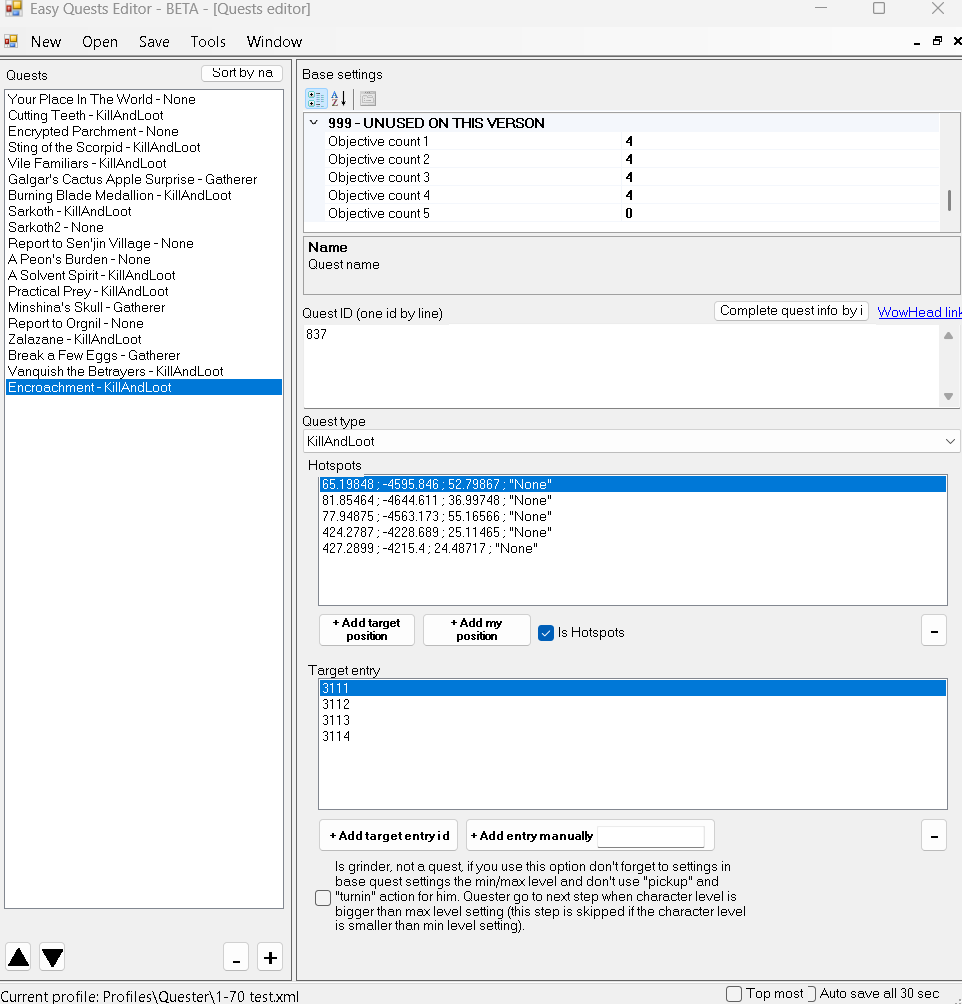
I've looked at other quests from other creators and they don't have anything extra, and I have it set up exactly the same, so I don't know what the problem is

Hello, I found this example:

https://github.com/droidzfr/WRobot_Packages/blob/fc6f7455e7c25beb4ce106788ae4d0725099bf2e/Old paid files/enraged/001053_Horde[01-12]Vanilla(Durotar).xml#L1708

But indeed your code looks good. When you launch Automaton near these mobs, the bot attacks them? Do you have the session log file with you? When you retrieve the target's information with 'Dev... tools' 'Target info' there is erroneous or bad information (like the blacklisted mob for example).

shadowlotu

Members

When I turn on the automaton, it works even if the quester is turned on and I just stop it and go to the mobs it kills them, but I'll try this one you sent me and let me know right away, otherwise thank you

shadowlotu

Members

Well, it can only be done this way, if there is more than one mob killed, then I will have to do this, otherwise he just keeps killing killed mobs, but I wouldn't try the mob position, it's my position in Outland, I just did it for show. But it's going to be terribly tedious, but it's one of the options.

test.xml

Create an account or sign in to comment

Account

Navigation

Search

Search

Configure browser push notifications

Chrome (Android)
  1. Tap the lock icon next to the address bar.
  2. Tap Permissions → Notifications.
  3. Adjust your preference.
Chrome (Desktop)
  1. Click the padlock icon in the address bar.
  2. Select Site settings.
  3. Find Notifications and adjust your preference.