Skip to content
View in the app

A better way to browse. Learn more.

WRobot

A full-screen app on your home screen with push notifications, badges and more.

To install this app on iOS and iPadOS
  1. Tap the Share icon in Safari
  2. Scroll the menu and tap Add to Home Screen.
  3. Tap Add in the top-right corner.
To install this app on Android
  1. Tap the 3-dot menu (⋮) in the top-right corner of the browser.
  2. Tap Add to Home screen or Install app.
  3. Confirm by tapping Install.

Fightback dont work

  • Version: All
  • Product: Quester
  • Type: Bug
  • Status: Not a Bug
wManager.Wow.Helpers.Conditions.ForceIgnoreIsAttacked = true;


wManager.Wow.Helpers.Conditions.ForceIgnoreIsAttacked = false;

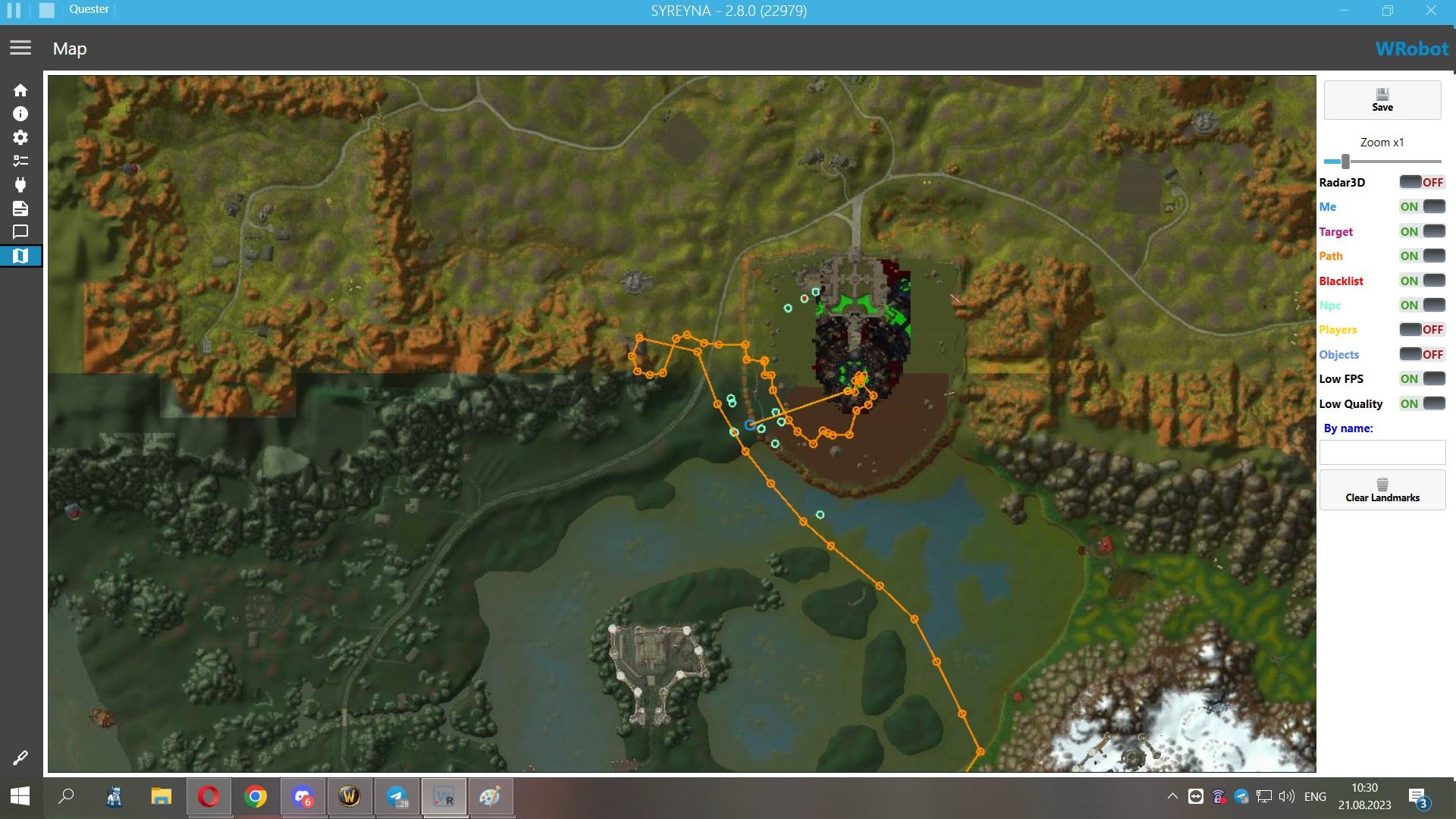
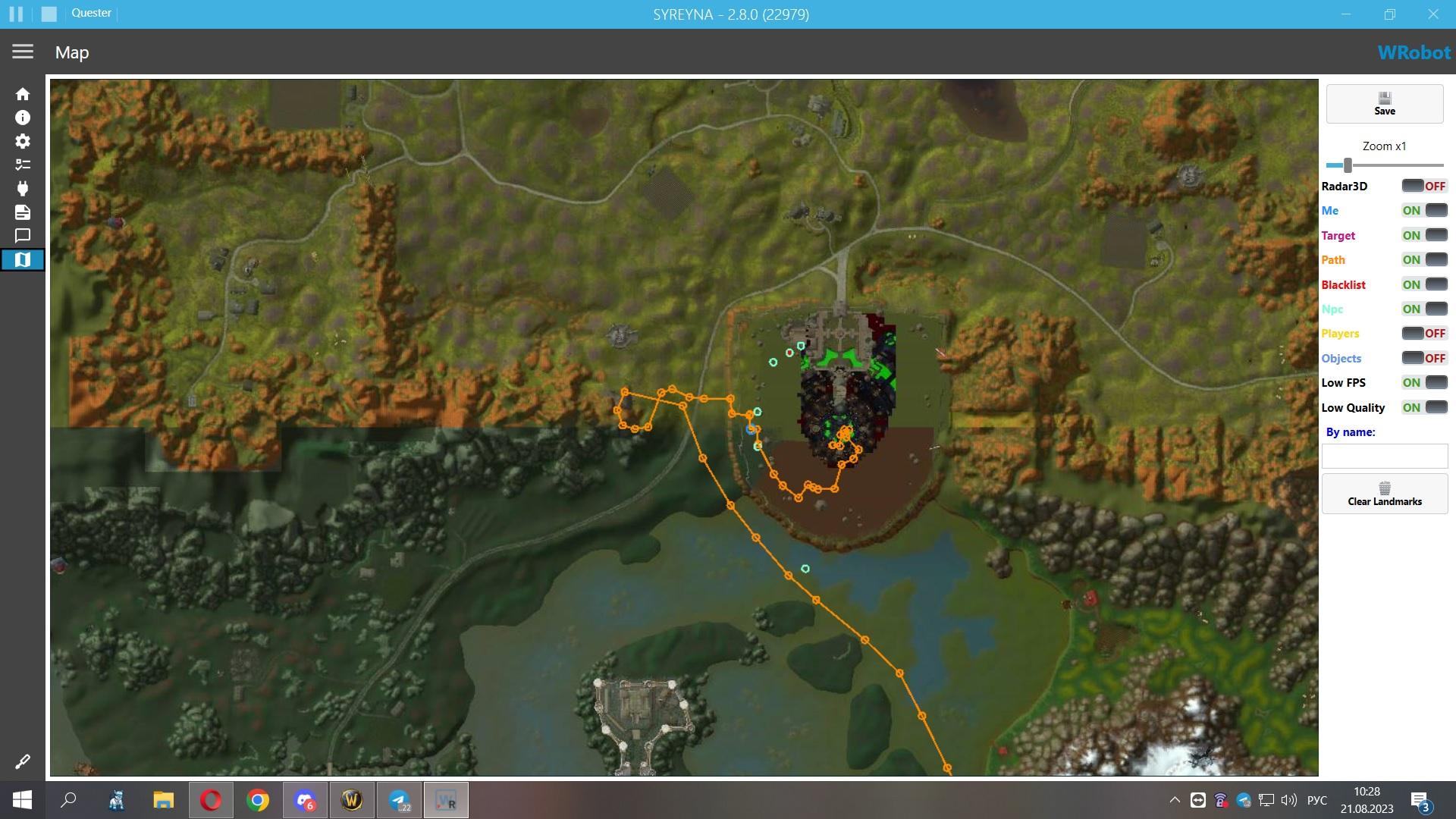
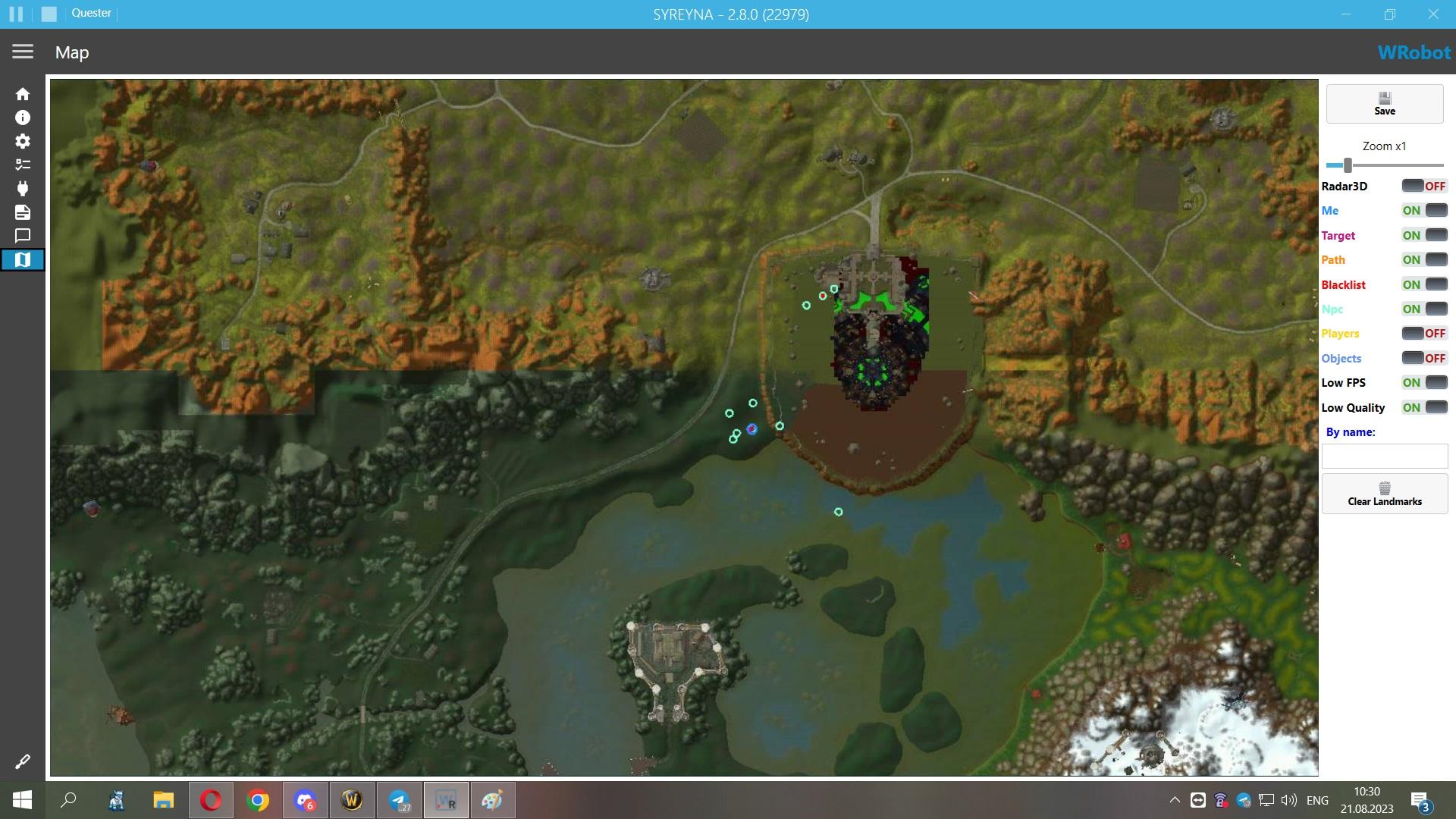
This code isnt working, the boot still do fightsback

First shot the bot follow the way, second do fightback, third the way is broken bcoz bot do the fightback.
23123123123.jpg

12312312312.jpg

13123123123.jpg

User Feedback

Recommended Comments

Hello, can you share log of the session please (and if you can sample profile)

After "MovementManager.Go" you should wait (movementmanager works in another thread). You can use code like that :

       while (MovementManager.InMovement &&
               Conditions.InGameAndConnectedAndProductStartedNotInPause)
        {
            Thread.Sleep(100);
        }


Create an account or sign in to comment

Account

Navigation

Search

Search

Configure browser push notifications

Chrome (Android)
  1. Tap the lock icon next to the address bar.
  2. Tap Permissions → Notifications.
  3. Adjust your preference.
Chrome (Desktop)
  1. Click the padlock icon in the address bar.
  2. Select Site settings.
  3. Find Notifications and adjust your preference.