




- Version: All
- Product: WRotation
- Type: Bug
- Status: Fixed
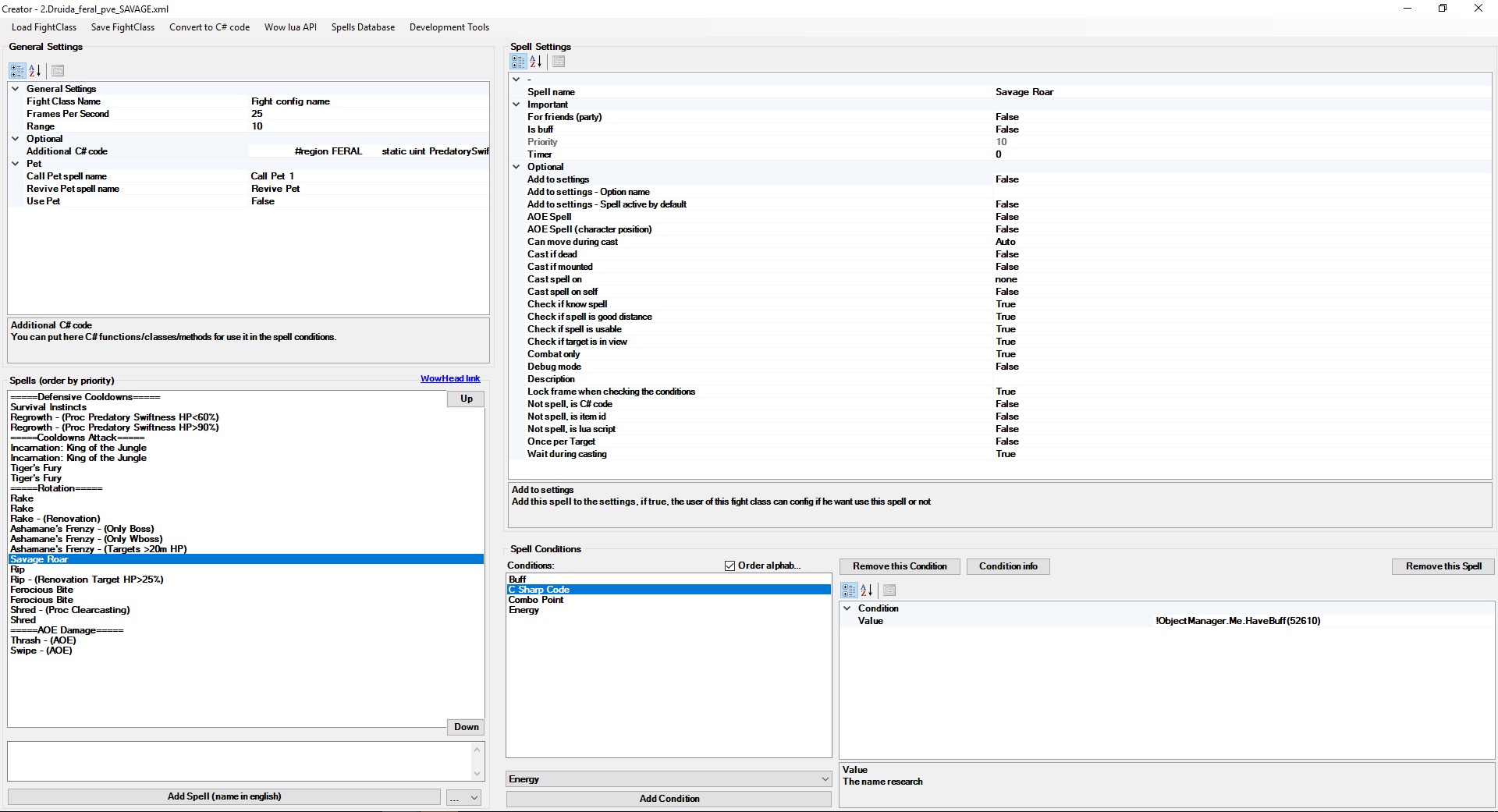
It did not work, it keeps repeating the skill until Savage Roar is actually recognized as a buff, and I think I've figured out the problem. I'll try to explain....
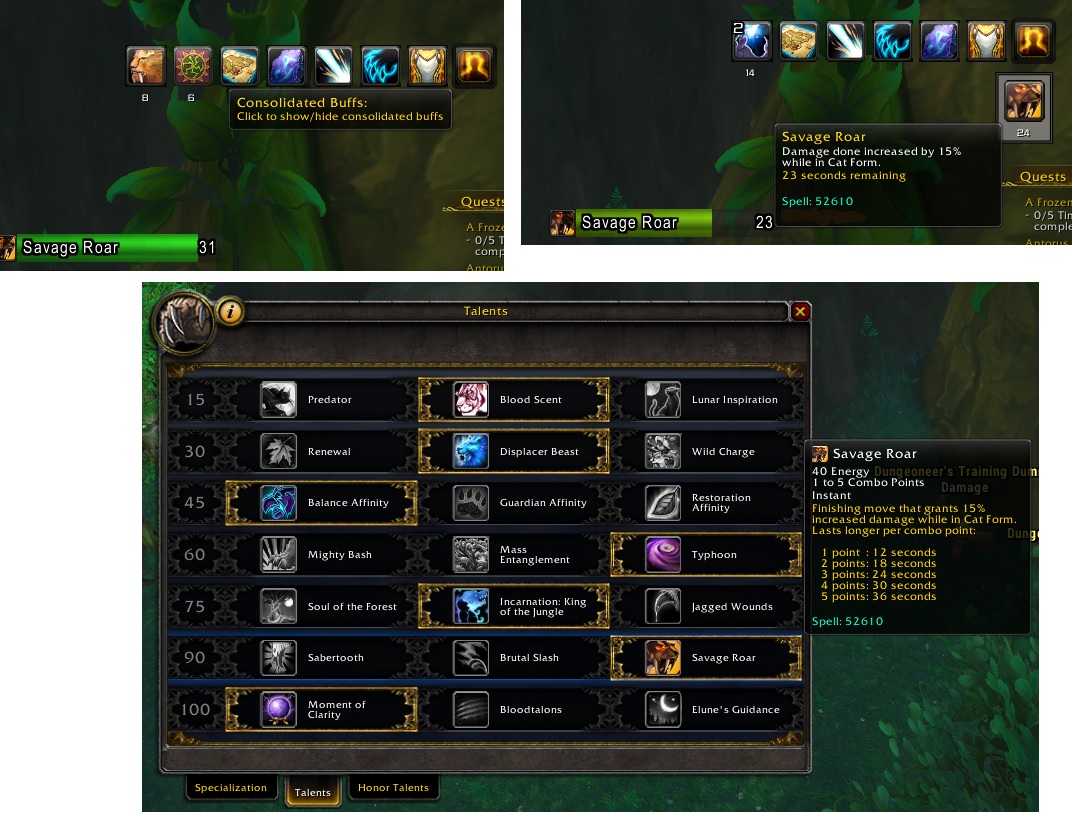
The savage roar in legion 7.3.5 is a talent and not a buff literally then the wrobot is recognizing the buff: savage roar> false as the selected talent making it true, so he uses the skill many times before recognizing the buff and jumping for the next rotation skill that in this case is Rip.
It is the same as what happens when you have the active talent "Lunar Inspiration" where to rotate the moonfire as feral, you put the condition of Buff: Lunar Inspiration> True and then Buff: Moonfire> False so he uses the ability on target forever that he is not with active in targert a moonfire debuff.
I would like someone to help me with Wrobot locating Savage Roar as a buff and not as talent, can anyone do it?
So I tried to explain, In the following photo of to observe well the problem. The Savage Roar talent ID is the same (52610) from Buff Savage Roar, so Wrobot does not recognize Savage Roar as a Buff and the Buff: Savage Roar> False condition is not recognized in Wrobot, it recognizes first the Savage Roar as Talent then he repeats the skill many times before continuing the rotation and often he does not even continue to spin repeating the Savage Roar infinitely, does anyone have any solution for this? PLEASE
Recommended Comments
Create an account or sign in to comment