



Skip to content
View in the app

A better way to browse. Learn more.

WRobot

A full-screen app on your home screen with push notifications, badges and more.

To install this app on iOS and iPadOS
  1. Tap the Share icon in Safari
  2. Scroll the menu and tap Add to Home Screen.
  3. Tap Add in the top-right corner.
To install this app on Android
  1. Tap the 3-dot menu (⋮) in the top-right corner of the browser.
  2. Tap Add to Home screen or Install app.
  3. Confirm by tapping Install.

When summiting check step one, then not processed and no error

  • Version: All
  • Product: WRobot General
  • Type: Bug
  • Status: Fixed

Hi,

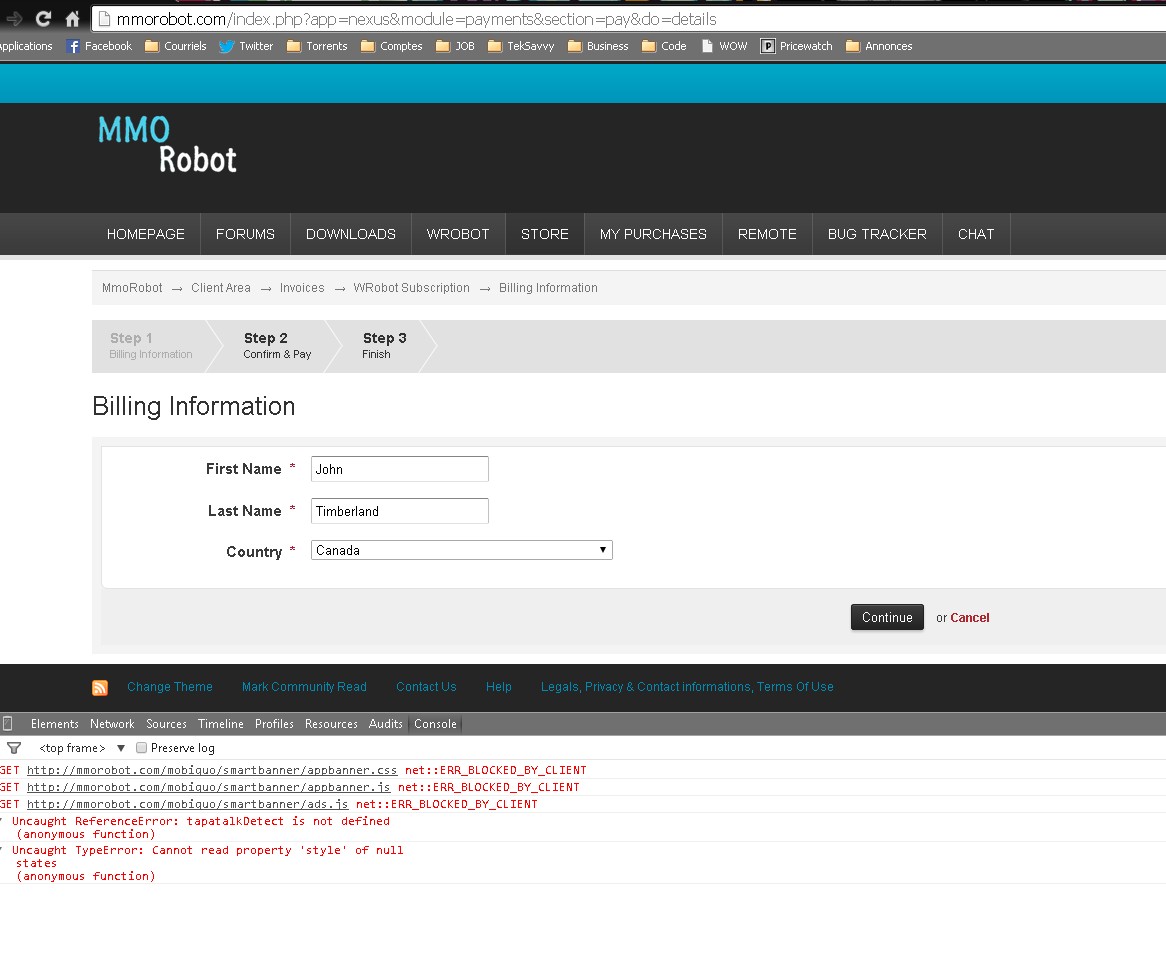
It seem like when I try to proceed from checkout step one, it doesn't do it.

A JavaScript function is returning null, maybe 2 functions.

See screenshot.


Attached Files:
User Feedback

Recommended Comments

creativextent

Elite user

Hello,


Please try a different browser.

I suggest Google Chrome as the best solution.


The issue you are having is due to your Browser blocking some scripts that are needing to run.


http://www.google.com/chrome/

Jdpower

Members

I was using chrome. 

However I am using Adblock plus as chrome extension.


I retried and was able to complete the checkout.

Hello,
 
I get same problem that you if I select country Canada. I have signaled problem at IPBoard. Thank you for report.

Create an account or sign in to comment

Account

Navigation

Search

Search

Configure browser push notifications

Chrome (Android)
  1. Tap the lock icon next to the address bar.
  2. Tap Permissions → Notifications.
  3. Adjust your preference.
Chrome (Desktop)
  1. Click the padlock icon in the address bar.
  2. Select Site settings.
  3. Find Notifications and adjust your preference.