



Skip to content
View in the app

A better way to browse. Learn more.

WRobot

A full-screen app on your home screen with push notifications, badges and more.
To install this app on iOS and iPadOS
  1. Tap the Share icon in Safari
  2. Scroll the menu and tap Add to Home Screen.
  3. Tap Add in the top-right corner.
To install this app on Android
  1. Tap the 3-dot menu (⋮) in the top-right corner of the browser.
  2. Tap Add to Home screen or Install app.
  3. Confirm by tapping Install.

1-5 Night Elf 1.0.1

(1 review)

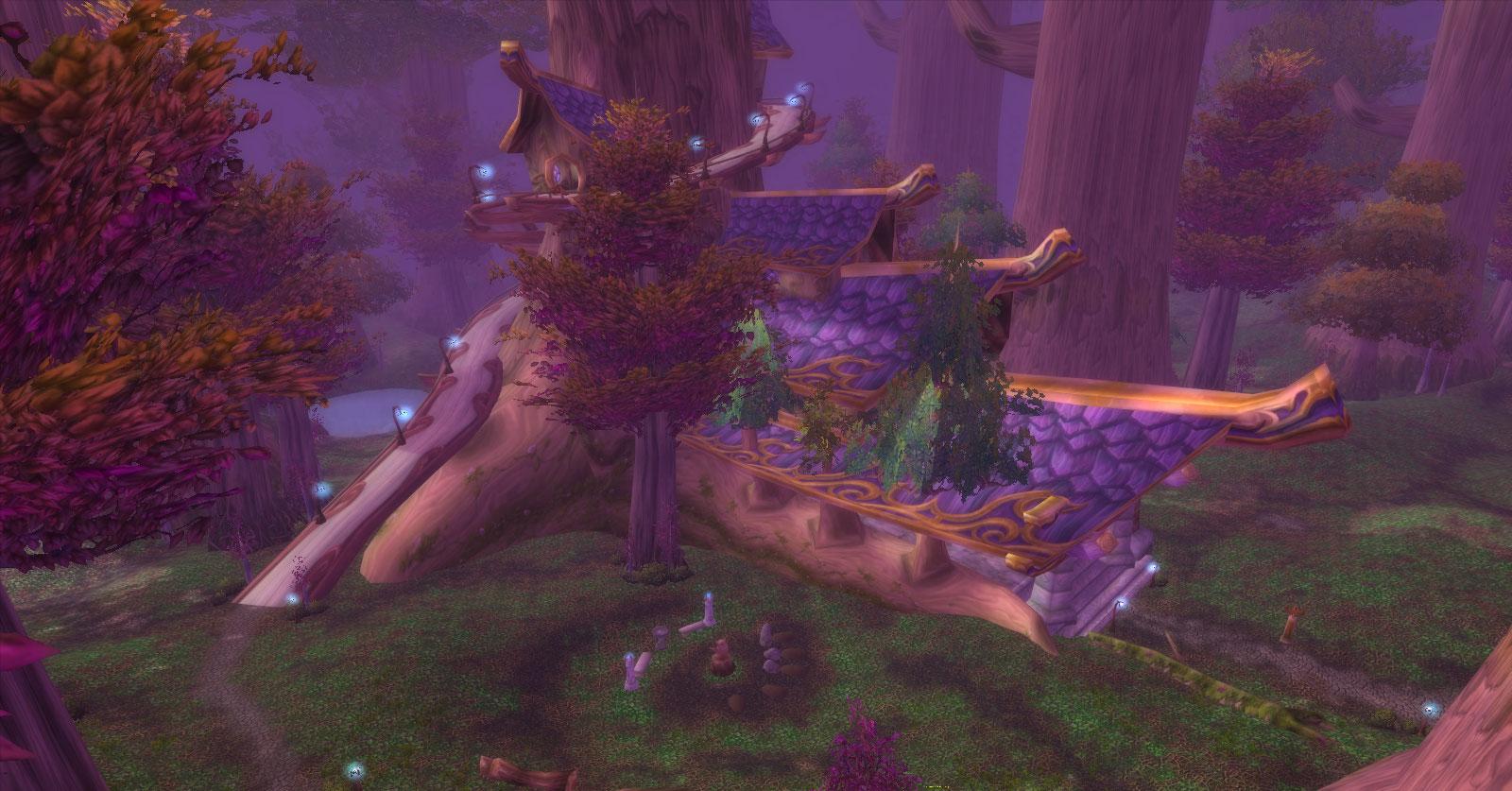
1 Screenshot

The profile contains the complete chain of quests of the Night Elves.


Supports:
- Sellers
- Repair
- Class trainers
- Class quests

User Feedback

Recommended Comments

Crespo

Members

Good job, I changed 2 things I suggest you do as well. For mushroom quest I'd say it's way better for bot to set up KillAndLoot grells/grellkins because they drop mushroom + give experience and they have fast respawn thus efficiency-wise it's better this way and also on I wouldn't separate Boars and Nightsabers.

One question because I'm pretty new to wrobot, how the hell do I stop the bot from going to the trainer? I removed the rogue quest npc and his coordinates that I found in profile but he still goes to trainer.

bizza

Members

On 22.12.2017 at 8:45 PM, Crespo said:

Good job, I changed 2 things I suggest you do as well. For mushroom quest I'd say it's way better for bot to set up KillAndLoot grells/grellkins because they drop mushroom + give experience and they have fast respawn thus efficiency-wise it's better this way and also on I wouldn't separate Boars and Nightsabers.

Thank you for your comment!

On 22.12.2017 at 8:45 PM, Crespo said:

One question because I'm pretty new to wrobot, how the hell do I stop the bot from going to the trainer? I removed the rogue quest npc and his coordinates that I found in profile but he still goes to trainer.

Off "Train New Skills / Train New Spells" in General Settings => Advanced Settings;

Create an account or sign in to comment

Account

Navigation

Search

Search

Configure browser push notifications

Chrome (Android)
  1. Tap the lock icon next to the address bar.
  2. Tap Permissions → Notifications.
  3. Adjust your preference.
Chrome (Desktop)
  1. Click the padlock icon in the address bar.
  2. Select Site settings.
  3. Find Notifications and adjust your preference.