



Skip to content
View in the app

A better way to browse. Learn more.

WRobot

A full-screen app on your home screen with push notifications, badges and more.
To install this app on iOS and iPadOS
  1. Tap the Share icon in Safari
  2. Scroll the menu and tap Add to Home Screen.
  3. Tap Add in the top-right corner.
To install this app on Android
  1. Tap the 3-dot menu (⋮) in the top-right corner of the browser.
  2. Tap Add to Home screen or Install app.
  3. Confirm by tapping Install.

Drwolf Blood DK 1.0.0

(0 reviews)

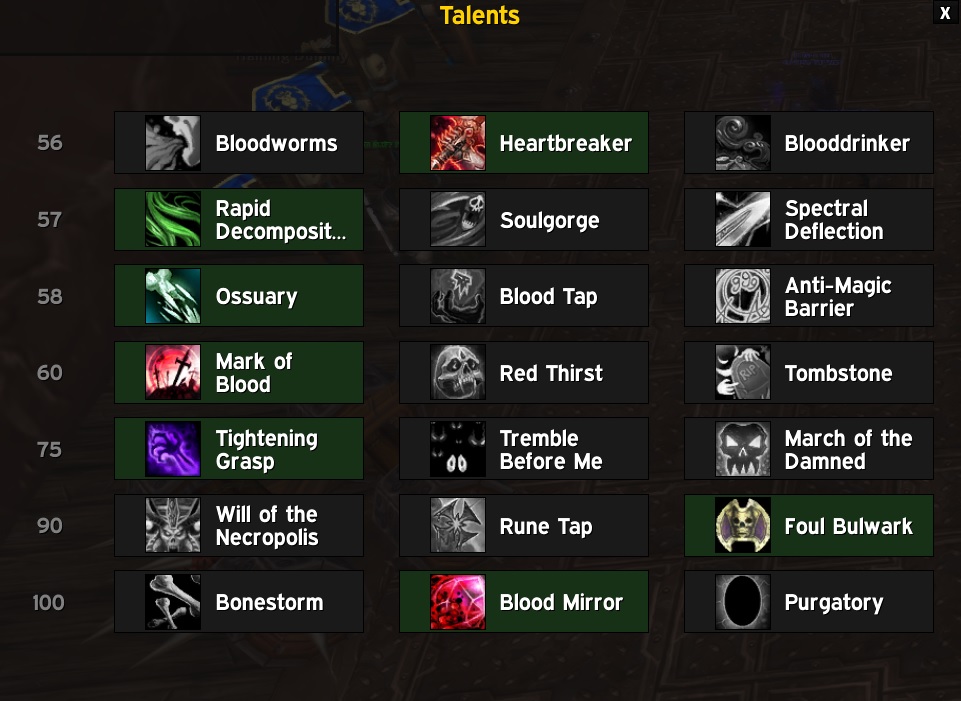
1 Screenshot

User Feedback

Recommended Comments

Samy

Members

thanks a lot

davy

Members

Hi Drwolf , 

Profiles works perfect for my Blood Dk , can also pull lots of mobs at the same time !

ty very much

speters28

Members

I love this profile the only issue I am ahving is that it is the only fight class I use that goes nuts when i click on a corpse or friendly NPC. For some reason it trys to attack the nearest mob when i click on a corpse or friendly NPC. May just be me or is there a setting for this particular fight class that I need to change. 

overall great setup thanks for your hard work!


youknowwhy

Members

Any chance we'll see the blood artifact weapon ability and other CDs added?

Jellypowered

Members

On 9/18/2016 at 8:00 PM, speters28 said:

I love this profile the only issue I am ahving is that it is the only fight class I use that goes nuts when i click on a corpse or friendly NPC. For some reason it trys to attack the nearest mob when i click on a corpse or friendly NPC. May just be me or is there a setting for this particular fight class that I need to change. 

overall great setup thanks for your hard work!


I had to change the combat skills to "Only usable in combat" to make it not look like a retard. :) works great though. 

Account

Navigation

Search

Search

Configure browser push notifications

Chrome (Android)
  1. Tap the lock icon next to the address bar.
  2. Tap Permissions → Notifications.
  3. Adjust your preference.
Chrome (Desktop)
  1. Click the padlock icon in the address bar.
  2. Select Site settings.
  3. Find Notifications and adjust your preference.

