



Skip to content
View in the app

A better way to browse. Learn more.

WRobot

A full-screen app on your home screen with push notifications, badges and more.

To install this app on iOS and iPadOS
  1. Tap the Share icon in Safari
  2. Scroll the menu and tap Add to Home Screen.
  3. Tap Add in the top-right corner.
To install this app on Android
  1. Tap the 3-dot menu (⋮) in the top-right corner of the browser.
  2. Tap Add to Home screen or Install app.
  3. Confirm by tapping Install.

Rogue Pick Pocket 1.0.0

(0 reviews)

1 Screenshot

Rogue-PickPocketonly.xml

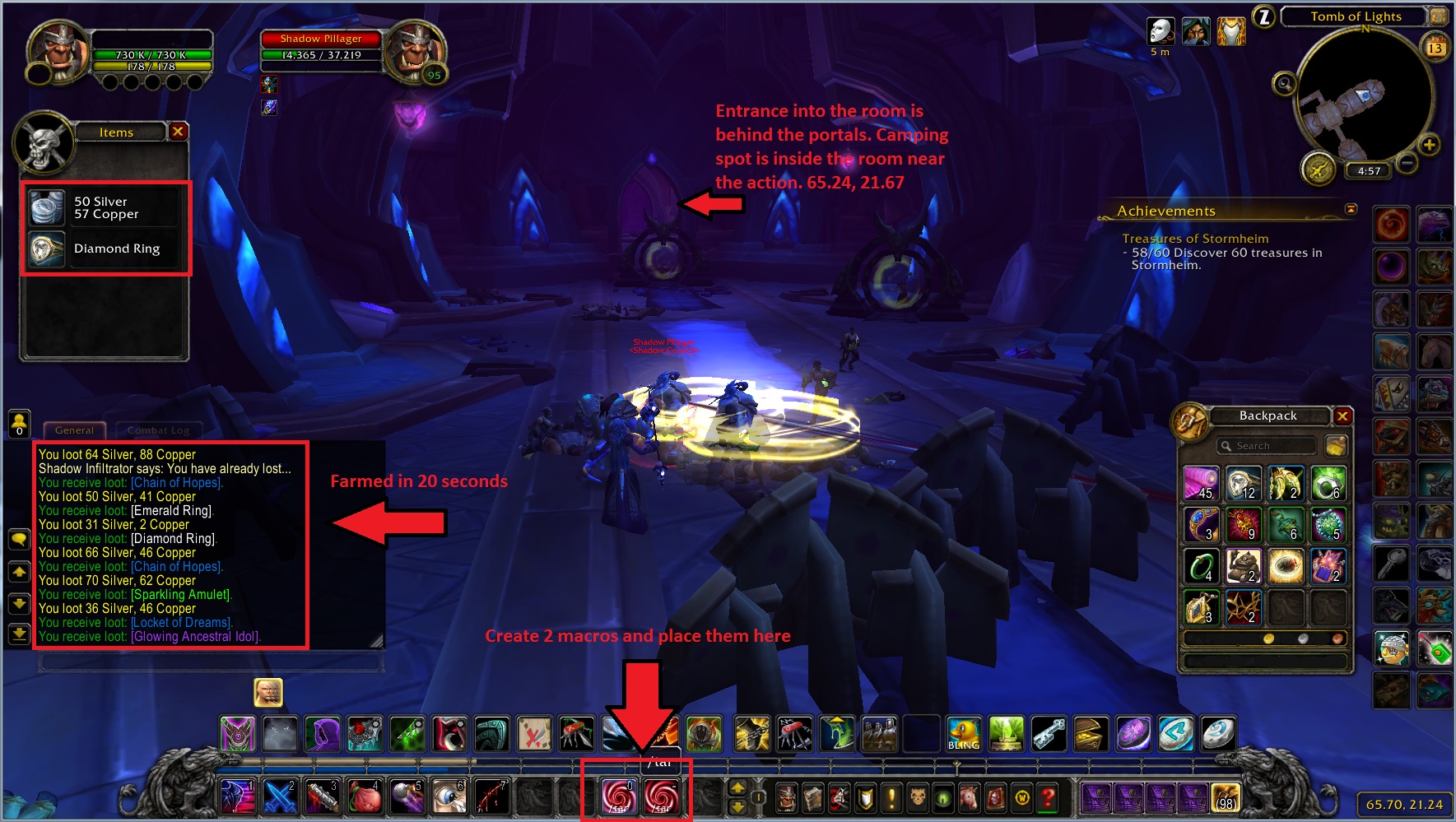
This should be placed into the Fight class folder. Under your General settings, turn off everything except Loot Mobs and Loot chests. Occasionally, the bot will kill a mob, but it re-stealths on its own. Be sure to check the box to use LUA and disable any "start fighting" options. While these mobs are red, they will not aggro on you. Also, disable any selling, repairing, and mounts. You want the bot to stand almost perfectly still. Disable any flying mounts and delete the mounts in both boxes. This is important. Also make sure all gather skills are disabled and reduce the search area number from 300 (default) to 5.



User Feedback

You may only provide a review once you have downloaded the file.

There are no reviews to display.

Account

Navigation

Search

Search

Configure browser push notifications

Chrome (Android)
  1. Tap the lock icon next to the address bar.
  2. Tap Permissions → Notifications.
  3. Adjust your preference.
Chrome (Desktop)
  1. Click the padlock icon in the address bar.
  2. Select Site settings.
  3. Find Notifications and adjust your preference.