



Skip to content
View in the app

A better way to browse. Learn more.

WRobot

A full-screen app on your home screen with push notifications, badges and more.

To install this app on iOS and iPadOS
  1. Tap the Share icon in Safari
  2. Scroll the menu and tap Add to Home Screen.
  3. Tap Add in the top-right corner.
To install this app on Android
  1. Tap the 3-dot menu (⋮) in the top-right corner of the browser.
  2. Tap Add to Home screen or Install app.
  3. Confirm by tapping Install.

thegodsilverwing

WRobot user
  • Joined

  • Last visited

Everything posted by thegodsilverwing

  1. My bad but you also need to enable this from false to true
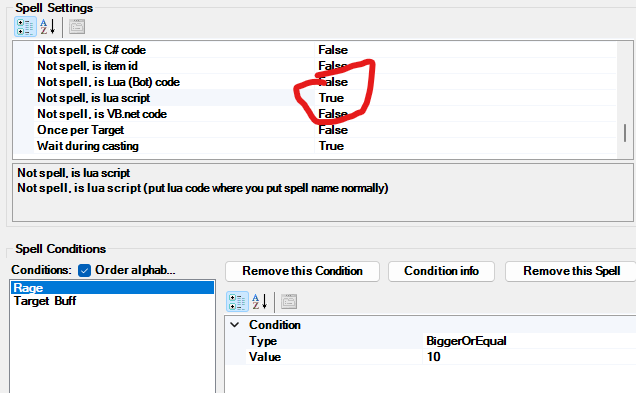
  2. Never mind folks I found the fix. Instead of the spell name in the fight class editor put an LUA code like this : and it will work. Cheers folks! CastSpellByName("Sinister Strike");
  3. Recently (literally today) Turtlewow released their own launcher and a new patch. Unfortunantly it stopped Wrobot from working. Possibly an anti cheat thing like Ascension has. Wouldn't put it past them though because any type of automated walking was instantly detected and had you tped to GM island.

Account

Navigation

Search

Search

Configure browser push notifications

Chrome (Android)
  1. Tap the lock icon next to the address bar.
  2. Tap Permissions → Notifications.
  3. Adjust your preference.
Chrome (Desktop)
  1. Click the padlock icon in the address bar.
  2. Select Site settings.
  3. Find Notifications and adjust your preference.