




Skad
Members
-
Joined
-
Last visited
Everything posted by Skad
-
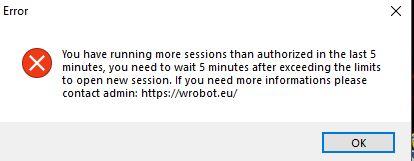
Also. When one session closes and when i try to open wrobot after that i get this error.
-
I cant give you logs because there arent any. 9 sessions are opened and they run for 20 minutes or so. Than a random session gets closed and no log is generated. So right now im able to run only 8 sessions at the same time.
-
I have 10 session 1 year subscription, I am able to run 8 sessions at same time. If i run 9th one of them gets closed, or i get an error message saying i cant run more sessions. I was able to run 10 sessions few days ago. they are all used on same IP and same PC so i see no problem here. My sub is valid till november. My client is updated...
-
Now I can even start program. "WRobot exe has stopped working"
-
28 Feb 2018 19H27.log.html
-
When I try to connect bot to my character it says:" Error during hook test. If the program freezes or has problems, I recommend to change your ingame directx version." Never had this issue earlier. Tried to install again and in that case it wont even star Wrobot. Can I uninstall last update or something?
-
When I try to connect bot to my character it says:" Error during hook test. If the program freezes or has problems, I recommend to change your ingame directx version." Never had this issue earlier.