



Skip to content
View in the app

A better way to browse. Learn more.

WRobot

A full-screen app on your home screen with push notifications, badges and more.

To install this app on iOS and iPadOS
  1. Tap the Share icon in Safari
  2. Scroll the menu and tap Add to Home Screen.
  3. Tap Add in the top-right corner.
To install this app on Android
  1. Tap the 3-dot menu (⋮) in the top-right corner of the browser.
  2. Tap Add to Home screen or Install app.
  3. Confirm by tapping Install.

dandan

Members
  • Joined

  • Last visited

  1. These are actually grinding profiles created within quester, how can I check those lvling conditions?
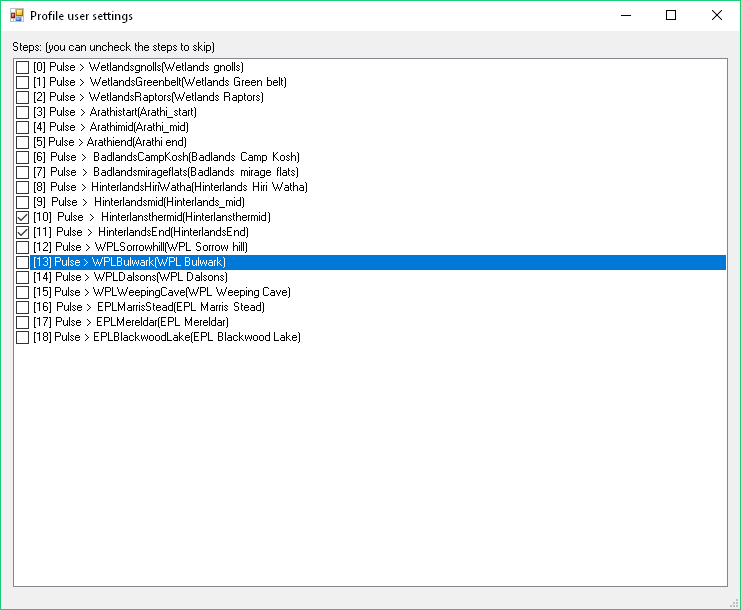
  2. Hey, Just wanted to ask how to run just part of a (questing) profile? I've went into the quester profile and deselected what I want skipped but nothing happens when I then run the bot, no errors or problems and if I aggro a mob it will then fight / loot it. It just never then moves around the loop that it normally did. When I check the paths in the WROBOT Map page it shows no area that it is looking at moving too next. For reference I've tried reinstalling WROBOT / and am lvl 60. If i recheck all the boxes it runs fine but will only do the last thing in the list ie Blackwood Lake
Account

Navigation

Search

Search

Configure browser push notifications

Chrome (Android)
  1. Tap the lock icon next to the address bar.
  2. Tap Permissions → Notifications.
  3. Adjust your preference.
Chrome (Desktop)
  1. Click the padlock icon in the address bar.
  2. Select Site settings.
  3. Find Notifications and adjust your preference.