sidalibns
Members
-
Joined
-
Last visited
Everything posted by sidalibns
-
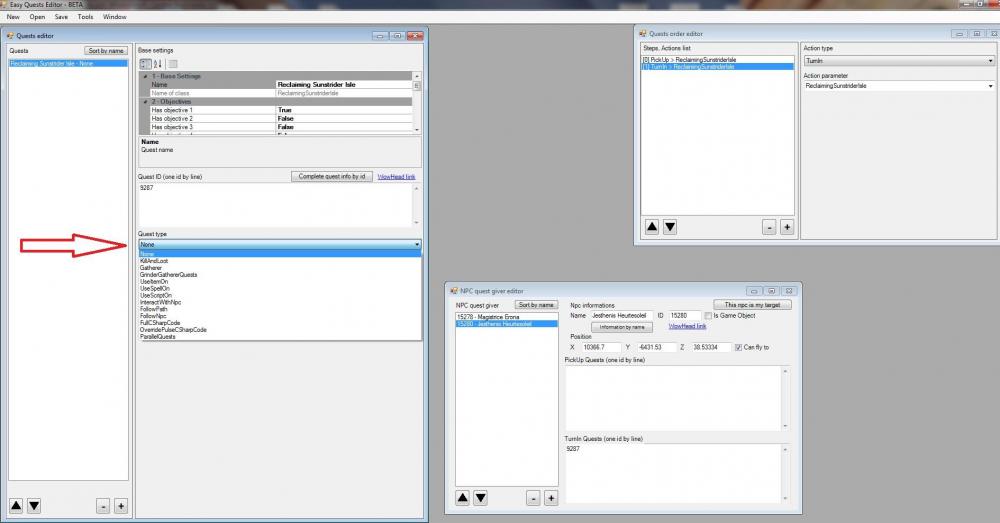
hello, how I do profil quest ended Look at the video so that you can understand me ---------> https://www.youtube.com/watch?v=KLpZwIIvc9Y What do I choose in Quest type ? ( see picture ) thank you
-
Hello, i have a question for auction wrobot. Is it still working ? need tutorial for auction please thank you
-
Perhaps because the computer specifications are weak RAM : 2Go Processor : Dual-Core CPU E5300 @ 2.60GHz integrated graphics card
-
I have a problem when I use Relogher 1st step: Run (40-50) min -----> Works normally 2nd step: wait (15-20) min ----> wow error When I use (option wait) I do not want to close the window wow (3.3.5) When he goes to the 2nd stage ----> wow error come Someone can help me Thank you
-
Hello, I have a problem when I use Relogher 1st step : Run (25-30)min -----> Works normally 2nd step : wait (15-20)min ----> wow error When I use (option wait) I don't want to close the window wow(3.3.5) When it moves to 2nd step ----> wow error come Someone can help me tank you