




saenseun
Members
-
Joined
-
Last visited
-
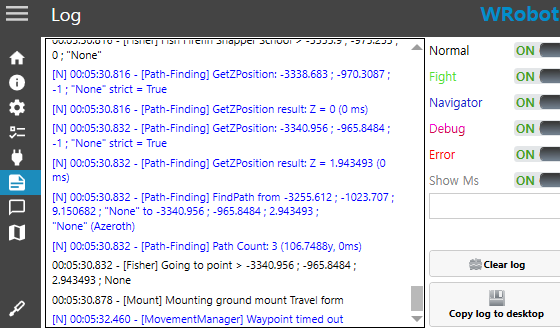
I'm playing WoW Vanilla server and use Wrobot mainly for fishing. Wrobot regularly stops every 30mins ~ 1 hour with "[MovementManager] Waypoint timed out" log, and go back to character selection. It happens with all my grinding characters in all places (there's no obstacle in some of the area). I checked "General Setting-Stop game" section and found nothing special to cause this problem. It used to work well without this problem last time i used Wrobot (which was 5 months ago). Also, i dont think it's connection problem because this "timed out" thing still happened when i changed with several VPNs. Could anyone help me with this problem?
-
I'm playing WoW Vanilla server and use Wrobot mainly for fishing. Wrobot regularly stops every 30mins ~ 1 hour with "[MovementManager] Waypoint timed out" log, and go back to character selection. It happens with all my grinding characters in all places (there's no obstacle in some of the area). I checked "General Setting-Stop game" section and found nothing special to cause this problem. It used to work well without this problem last time i used Wrobot (which was 5 months ago). Also, i dont think it's connection problem because this "timed out" thing still happened when i changed with several VPNs. Could anyone help me with this problem?