




Hoopinfrog
Members
-
Joined
-
Last visited
Everything posted by Hoopinfrog
-
I did try to redownload the updater, but the issue does not seem to be fixed. I grabbed obs studios to record my screen real quick to show you exactly what's going on. When the screen goes black for a second, that is not something I experienced without the obs. I believe obs attempted to capture the new window for a second. Nothing happens except the taskbar icon shows up when I normally open the updater. 2021-03-12 09-36-23.mkv
-
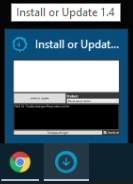
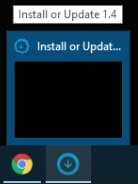
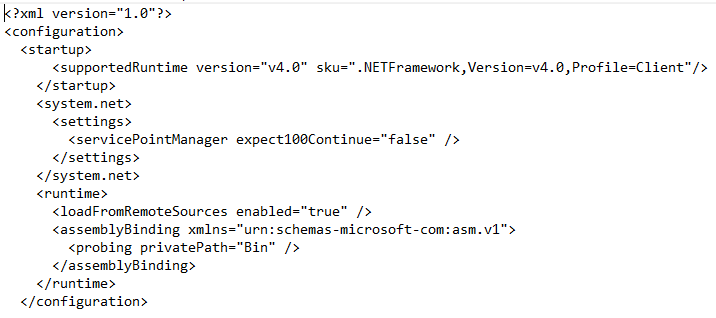
I don't believe I have any log files yet because I have not been able to get the WRobot client from the Updater application. These are from my desktop - picture on the left, with the black screen, I'm assuming is when the Updater is "open" and the one on the right is when it is minimized to the taskbar. Other than this I cannot see the updater at all on my desktop. I wasn't sure if it had something to do with the text in the Updater.exe, but that was my first thought. That's the unedited text in the last picture. Thank you.
-
Hi, I wanted to see if I could get the client running before I did any purchases. I ran into an issue of being unable to see the WRobot installer window. I noticed other forum posts mention a black screen, when highlighting over the icon while in the taskbar, the small preview picture will show a black screen when it is minimized and the installer when not minimized. However, when finally click the icon in the taskbar, nothing shows. I am able to find what should be the installer but it is completely transparent - including no border. I could not find the <CanProtectAgainstScreenshots>false</CanProtectAgainstScreenshots> or "WRobot\Settings \RobotManagerGlobalSetting.xml" Thank you