bobbekong
Members
-
Joined
-
Last visited
-
@Droidz
-
after I click stop , bot keeps crushing and even I restart the bot , it keeps crushing too ,and without any information @Droid
-
14 5月 2023 21H31 - cEfj.log.html
-
@Droidz The server I play only have bosses in the raid ,so this profile has only part of path of bosses .@Droidzeven it cant finish one ,but it cant loop . can you help me looking through this profile I made ? @Droidneed help !!! Stratholme_Raid ,always stuck somewhere , it drives me madStratholme_Raid_9Bosses.xmlI think VPN is forbidden by WRobot
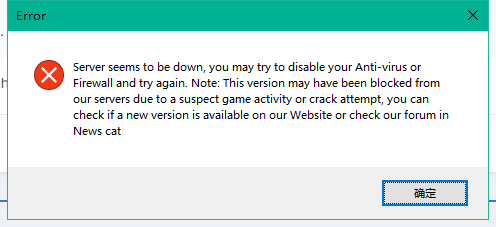 I think Internet lagging affects path finding , it will directly make mistake when it goes to next hospot that I recorded. Is there any sollution ?23 4月 2023 02H01.log.html seems it alwasy suck at same place ,i cant understand ,need your help @Droid纳克萨玛斯 - 单刷.xml I am using it like this , it seems work right now .but IDK if it's right or not.BTW ,I was making a Dungeon profile .@Droidz How do I use those code ?I want my quester profile to go specific step after character die,what command and parameter should i use ?