wow20230625
Members
-
Joined
-
Last visited
-
Thanks for your reply
-
You said account, refers to the store to buy the product session?
-
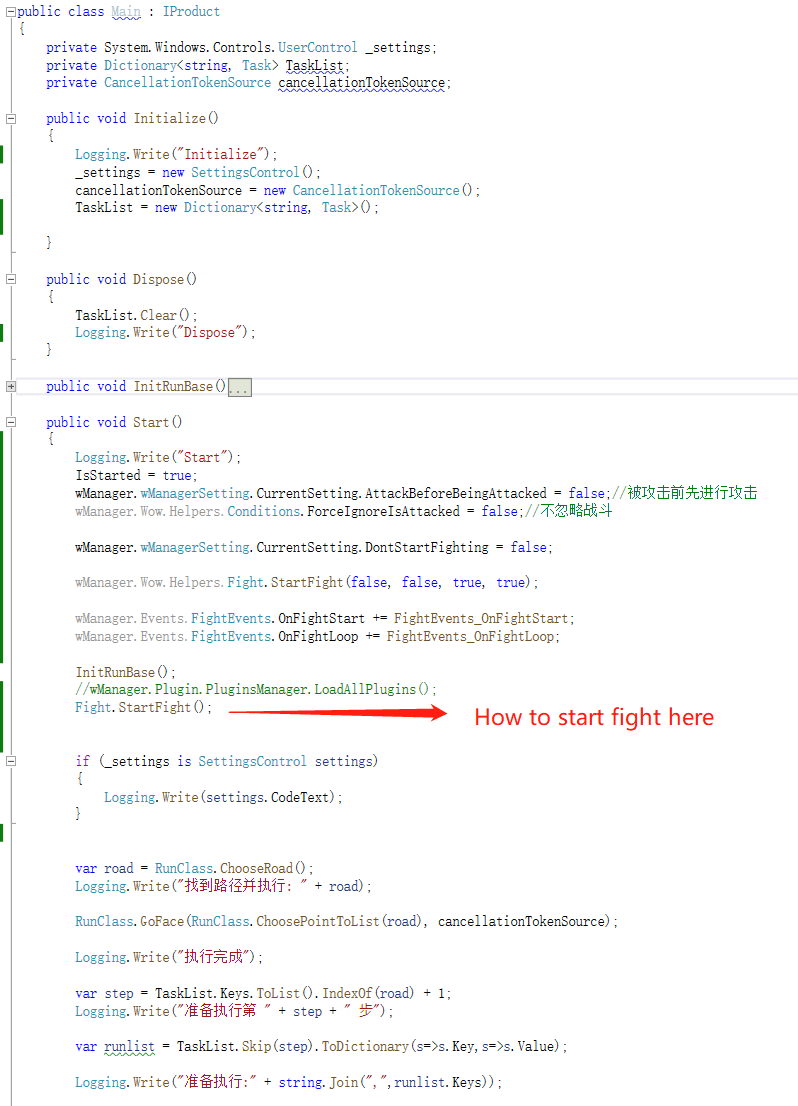
Thank you for your reply,I want to use FightClass,but can't be like other default product effective
-
The code above
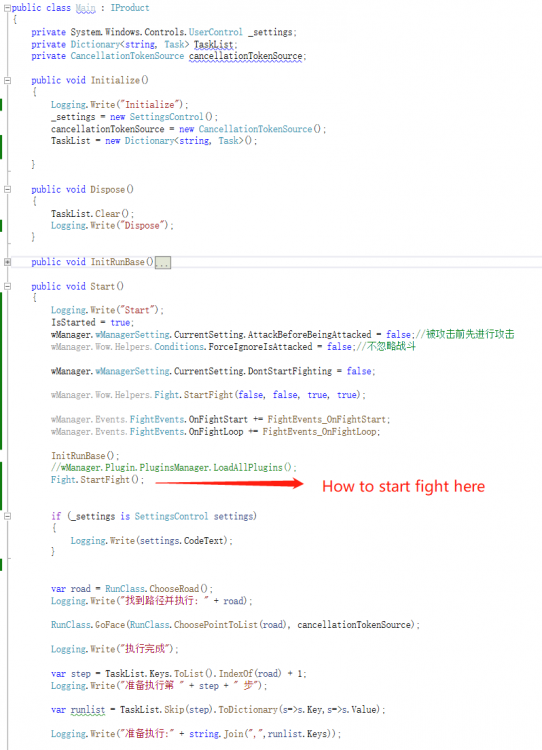
-
Hi, Main.cs
-
hi, Unexpected stop or restart or After the fighting , Can't According to the previously defined path to walk
-
in quester Is invalid ,but character will Automatic location to resurrection,Just like the following code: MovementManager.Go(PathFinder.FindPath(new Vector3(819.1201, 541.1679, 34.26245, "None")), false); while (MovementManager.InMovement && Conditions.InGameAndConnectedAndProductStartedNotInPause) { Thread.Sleep(100); }
-
Like Broadcast messages,System message
-
I think because I'm not accurate enough,I describe it in detail: In Quester mode, character will force automatically search for bodies, Can't use a custom script control movement. How to let it is not automatic, but using a script to control.
-
In Quester mode,RunCode:MovementManager.Go(PathFinder.FindPath(new Vector3(819.1201, 541.1679, 34.26245, "None")), false);
-
State of the soul, is unable to control movement
-
-
I have two questions to ask 1.How to make the pet use “MoveManager” 2.How to use “MoveManager” in the state the soul
-
Thank you,The problem is resolved.
-
-
Fight.StopFight(); Using this method is invalid
-
Fight.StopFight();