




- Product: WRobot General
- Type: Bug
- Status: Unconfirmed
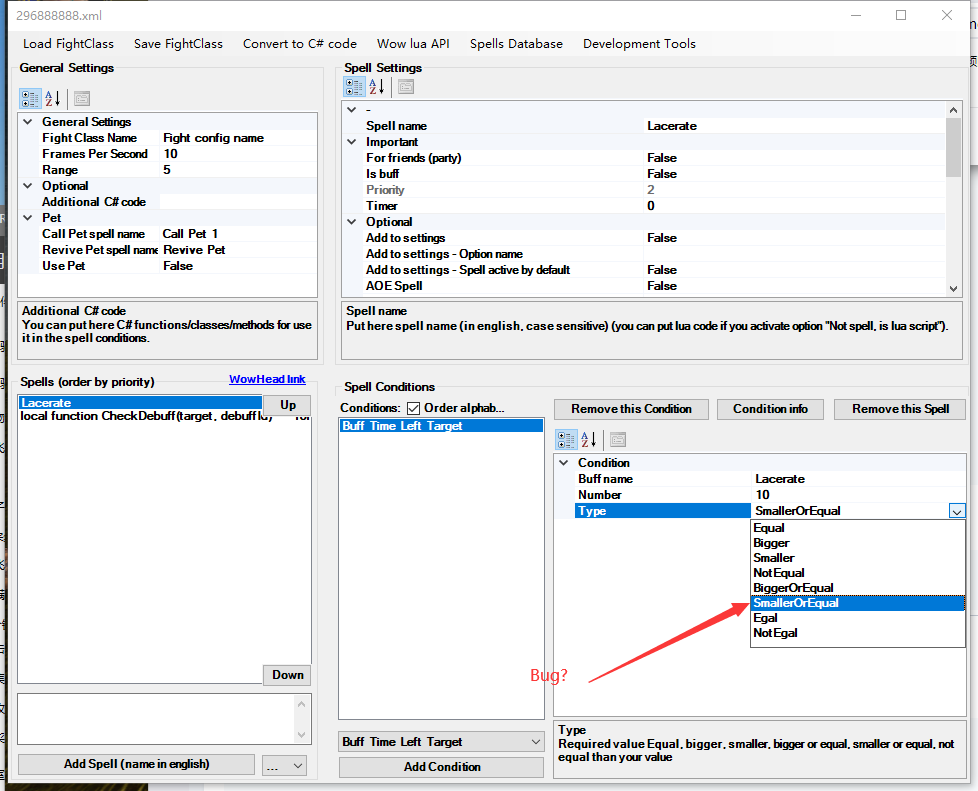
Sry my english.I found a bug while debugging the Druid's Lacerate skill. In the "Add condition" section, the "Buff Time Left Target" option is not working properly. The "Bigger/Smaller" comparisons are ineffective, making it impossible to correctly assess the remaining time of the debuff on the target. I am using WR2.8.0, and the game version is 3.3.5. Currently, my workaround is to write my own Lua script to check the stack count and remaining time, as follows:
-- 函数:检查目标的 Debuff 并获取其剩余时间和层数
local function CheckDebuff(target, debuffId)
    for i = 1, 40 do
        local name, _, count, _, _, duration, expirationTime, _, _, _, spellId = UnitDebuff(target, i)
        if spellId == debuffId then
            local remainingTime = expirationTime - GetTime()
            return remainingTime, count
        end
    end
    return nil, nil
end

-- 常量:Lacerate 的 Debuff ID
local LACERATE_DEBUFF_ID = 48568

-- 检查目标的 Lacerate Debuff 剩余时间和层数
local remainingTime, stackCount = CheckDebuff("target", LACERATE_DEBUFF_ID)

-- 如果剩余时间小于 10 秒或层数小于 3 层,则释放 Lacerate
if (remainingTime and remainingTime < 10) or (stackCount and stackCount < 3) then
    -- 使用 CastSpellByName 函数释放 Lacerate
    -- 注意:这种自动施法的行为可能违反游戏规则
    CastSpellByName("割伤")
end
Recommended Comments
Create an account or sign in to comment