



Skip to content
View in the app

A better way to browse. Learn more.

WRobot

A full-screen app on your home screen with push notifications, badges and more.

To install this app on iOS and iPadOS
  1. Tap the Share icon in Safari
  2. Scroll the menu and tap Add to Home Screen.
  3. Tap Add in the top-right corner.
To install this app on Android
  1. Tap the 3-dot menu (⋮) in the top-right corner of the browser.
  2. Tap Add to Home screen or Install app.
  3. Confirm by tapping Install.

can not be used

  • Product: WRobot General
  • Type: Bug
  • Status: Unconfirmed

I used it all before when I tried it. After I bought the official version, I found that I can't use it. I have been reporting an error. I tried to reinstall the system and delete the HOSTS file, but I still can't use it. Please help me.
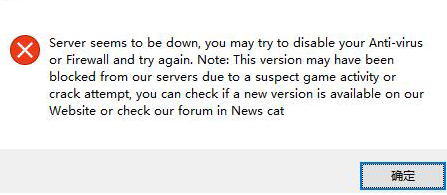
987379189_QQ20190331101818.png.52537de7a711b8960002c78e075e6623.png987379189_QQ20190331101818.png.52537de7a711b8960002c78e075e6623.png

User Feedback

Recommended Comments

Hello,

how reply several time by support request.

And I would be curious to know why your key is used if you can not use WRobot?

Create an account or sign in to comment

Account

Navigation

Search

Search

Configure browser push notifications

Chrome (Android)
  1. Tap the lock icon next to the address bar.
  2. Tap Permissions → Notifications.
  3. Adjust your preference.
Chrome (Desktop)
  1. Click the padlock icon in the address bar.
  2. Select Site settings.
  3. Find Notifications and adjust your preference.