



Skip to content
View in the app

A better way to browse. Learn more.

WRobot

A full-screen app on your home screen with push notifications, badges and more.

To install this app on iOS and iPadOS
  1. Tap the Share icon in Safari
  2. Scroll the menu and tap Add to Home Screen.
  3. Tap Add in the top-right corner.
To install this app on Android
  1. Tap the 3-dot menu (⋮) in the top-right corner of the browser.
  2. Tap Add to Home screen or Install app.
  3. Confirm by tapping Install.

Feature Request: write info from "in game" view to logfile

  • Version: All
  • Product: WRobot General
  • Type: Suggestion
  • Status: Not Added

Hi,

i think it would be a good idea to write information shown in the "in game" screen also to the log file like, when bot state is changing the new one, and maybe every minute a compilation of the statistics like xp per minute, bag slots, etc...

This would make the log more useful to read if you want to know what has happened when

also have a look into my carbonite event-log:
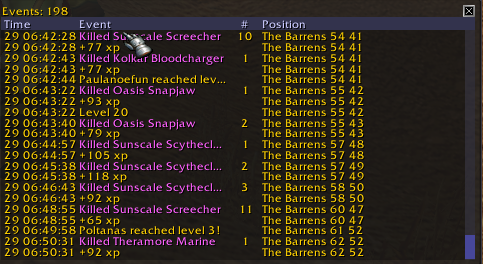
image.png.974d0c4c915631e046378086c6e9ab34.png

its a nice way where you could see some things to add to your log to, like every xp gained deserves a line in your log to...

and what i would like to read on the Map screen, is a status bar maybe with Bot state, level and xp per minute, ah the xp to the next level could also be shown as a progress bar at the in game screen 😉


thanks a lot in advance

User Feedback

Recommended Comments

Hello,
I won't add this feature because it would make bot detection easier. But this functionality can easily be added with a WRobot plugin for example.

Create an account or sign in to comment

Account

Navigation

Search

Search

Configure browser push notifications

Chrome (Android)
  1. Tap the lock icon next to the address bar.
  2. Tap Permissions → Notifications.
  3. Adjust your preference.
Chrome (Desktop)
  1. Click the padlock icon in the address bar.
  2. Select Site settings.
  3. Find Notifications and adjust your preference.