



Skip to content
View in the app

A better way to browse. Learn more.

WRobot

A full-screen app on your home screen with push notifications, badges and more.

To install this app on iOS and iPadOS
  1. Tap the Share icon in Safari
  2. Scroll the menu and tap Add to Home Screen.
  3. Tap Add in the top-right corner.
To install this app on Android
  1. Tap the 3-dot menu (⋮) in the top-right corner of the browser.
  2. Tap Add to Home screen or Install app.
  3. Confirm by tapping Install.

Dan's PvP MM Hunter fight profile 1.0.0

(1 review)

1 Screenshot

Good pvp fighting profile for MM Hunter.
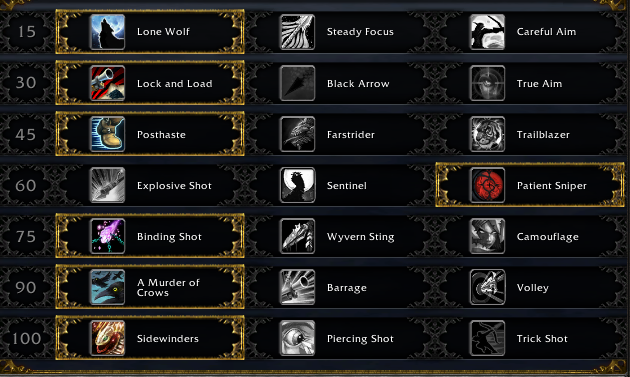
5981db790f10c_Wrobotkuva.PNG.3b81942c94f9fddcfce9a3d763ec337f.PNG

These talents are for the best damage output. If you like me to do changes, let me know, but i have done the best damage with this setup.

The profile does:

Use "Sidewinders" as often as possible together with "Marked Shot"

Fil up the cooldown times with "Aimed Shot"

Use "Binding Shot" to stun moving enemies

Use "A Murder of Crows" off cooldown

Bot interupts enemy casting with "Counter Shot"

Bot uses "Disengage" if enemies are close

Bot uses "Tar Trap" and "Flare" in enemy groups.

Bot uses artifact off cooldown

Bot also uses defensives when taking high damage.
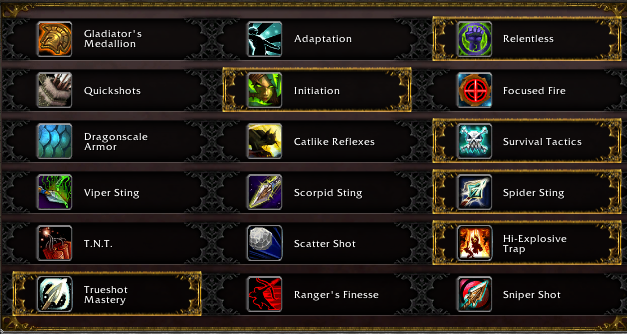
5981dc2ec7206_Honortalentswrobot.PNG.bc1ce05d2e30767ed3c3a9a1a042d1de.PNG

These are the PvP talents which i have chosen. I have human hunter so i have the human racial like a second trinket. I have optimized the human racial to the fighting class.

This profile does:

Use "Spider Sting" if "Counter Shot" is on cooldown and the enemy target is casting.

You may want to use T.N.T. instead of "Hi-Explosive Trap" because bot doesnt really do anything with that.

I hope you guys like this, it's very simple, but works great.

User Feedback

You may only provide a review once you have downloaded the file.


Pretty solid work my man, won a good amount of 3s with my boys last night. Keep it up!

Account

Navigation

Search

Search

Configure browser push notifications

Chrome (Android)
  1. Tap the lock icon next to the address bar.
  2. Tap Permissions → Notifications.
  3. Adjust your preference.
Chrome (Desktop)
  1. Click the padlock icon in the address bar.
  2. Select Site settings.
  3. Find Notifications and adjust your preference.