




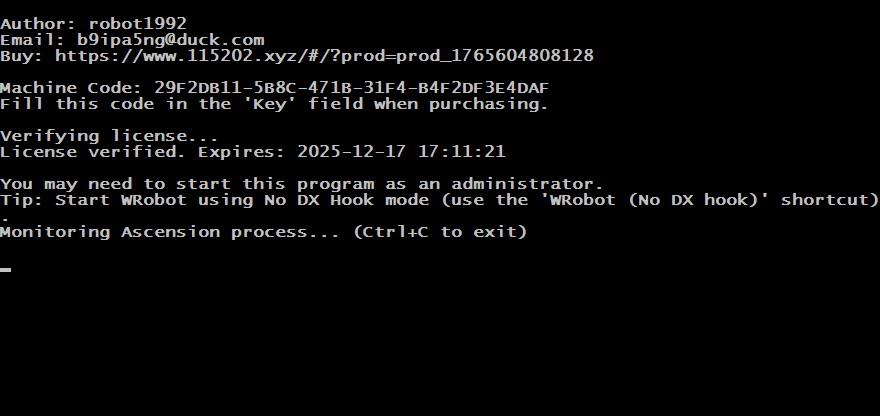
Author: robot1992
Email: [email protected]
You may need to start this program as an Administrator.
update version 3.0
Support Live and Epoch. https://ascension.gg
Try it for free for one day: https://115202.xyz/#/?prod=prod_1765604808128
This tool just gets WR working on Ascension.
The implementation of automation functions needs to be done by yourself through WR.
Ascension WRobot Fix: Setup & Usage Guide
Part 1: License Activation
-
Run
ascension_wrobot_fix.exe. -
Copy the Machine Code displayed in the window.
-
Visit the registration page: Click Here.
-
Select the Free Duration option.
-
Paste your Machine Code into the field labeled License Key.
-
Enter your email address and click Checkout.
-
Click Complete Payment to finish (no charge).
Part 2: How to Start
-
Close and reopen
ascension_wrobot_fix.exe. -
Log in to the Ascension game client.
-
Launch WRobot.
-
Important: Ensure you select "No DX Hook" mode during startup.
What's New in Version 2.0.0
Released
update version 2.0
Support Live and Epoch. https://ascension.gg
Try it for free for one day: https://115202.xyz/#/?prod=prod_1765604808128
You may only provide a review once you have downloaded the file.
There are no reviews to display.