micam
Members
-
Joined
-
Last visited
Files posted by micam
-
About This File
Auto update every spells you have in every action bars with the highest rank of the spell you have in your spell book.
How it works:
The plugin checks every 5 minutes every spells you have in your spell book. For every spell it will find if you have it in an action bar slot and replace it with the highest rank of this spell you have in your spell book
Limitations:
The plugin only upgrade the first spell he will find in your action bars (wow vanilla api ...) so if you have more than 1 time a spell in your action bars, it will not update all of them, only the first he will find according to action bar slot id order.
- 397 Downloads
- 5 Comments
Submitted -
Hello Everyone !
Here is a Questing profile made for Vanilla (it will also work for TBC/WOTLK i guess but i haven't tested it).
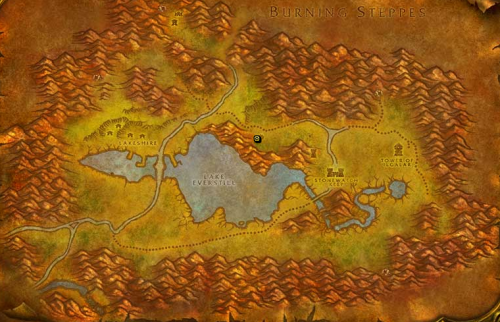
He will simply go to Redridge Mountains and farm "Practice Lockbox" until your Rogue hit level 100 in lockpicking.
Remember that you need to be at least 75 in Lockpicking to perform the level 20 Rogue class quest for poison
Requirement
Learn Lockpicking from a Rogue class trainer. Having the "Thieves' Tools" in your bags to be able to perform Lockpicking spell. Launch the profil when you are already in Redridge Mountains will be better.- 416 Downloads
- 4 Comments
Submitted