




GJ31
-
Joined
-
Last visited
Posts posted by GJ31
-
-
On 18/01/2018 at 7:12 AM, headcrab said:
Ok. Because all want know, i'll write it here.
-
check AcceptBattlefieldPort is disabled on your server. Open developement tools and run C# code
Battleground.JointBattleGroundQueue(32); // this is random BG
Thread.Sleep(1000);
Battleground.AcceptBattlefieldPortAll();
This starts BG queue, and should accept BG when it ready. If it works, you need no any modifications. If not accepts, LUA function AcceptBattlefieldPort is disabled on your server or works unstable. So, go to step 2
-
download and install dnSpy
-
in dnSpy open wManager.dll and find method AcceptBattlefieldPortAll
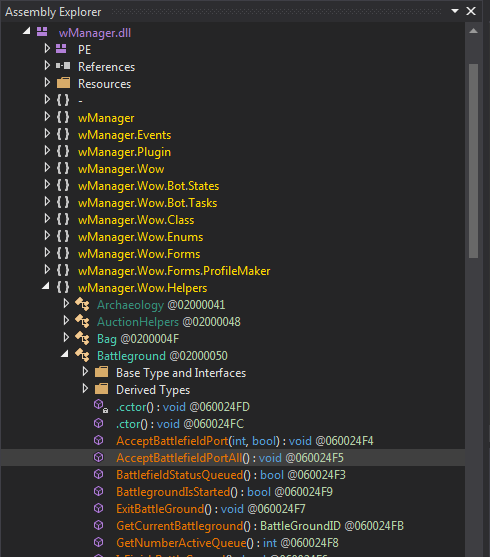
-
right click and run menu item "Edit Method (C#)". You will see obfuscated code, but no problem. Find string with Battleground.AcceptBattlefieldPort and comment it
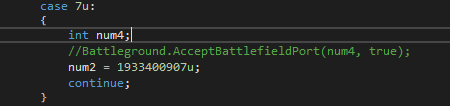
-
compile and save.
Voila, now your battlegrounder will accept BG with Battlegrounder helper plugin, because it uses alternative method.
Dont update your robot, or do this steps after every update
Sorry to be a pain, and forgive me total amateurishness at this, but how do I do this?
-
check AcceptBattlefieldPort is disabled on your server. Open developement tools and run C# code
-
In my chat window in the on the Game client, I'm also getting this message: [string "MISdnLD.lua"]:1: attempt to index global 'TaxiButton3' (a nil value)
Thanks for the help!
-
Something went totally wrong with wrobot
in WRobot for Wow Wrath of the Lich King - Help and support
Thank god other people are having the same problem, I was worried it was something my end! Absolute carbon copy happening here too. Tried all the obvious fixes; restarting PC, updating wRobot, deleting everything and re-installing, re-downloading off website (which also seems to be acting odd? Occasionally getting page timed out).
If I try to open wRobot, 9/10 it will stop responding and require you to end task in Task Manager. Takes a very very long time to boot up. If I manage to boot it up, the 'Play' button to start the bot is just like a dead link and does nothing, error message stating along the lines of 'Something wrong with Wrobot sever / Firewall settings'.
Hopefully this is a simple fix!