Eindbaas
Members
-
Joined
-
Last visited
Everything posted by Eindbaas
-
Hi all, After the new update the problem still occurs. I created a new character (Horde mage, on vanilla wow) but the error still occurs. (I will also sent you the logs Droidz)
-
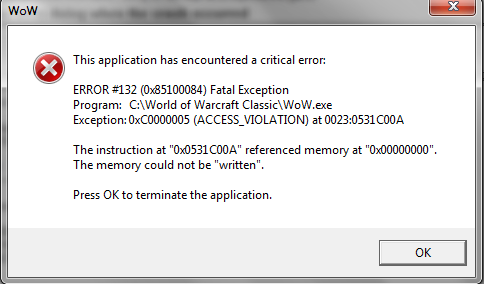
@Watcher Thanks! In addition, I took my other PC (a Macbook), installed Virtualbox with Windows 10, installed a fresh wow client and a fresh wRobot. when I run the bot without any plugins or addons, just the wRobot automation, the same error (Wow client error #132) occured. I have been botting on a daily bases for the last 7 months without any problems. After the latest update, I cannot bot anymore... Does someone maybe know a way to obtain the previous version of wRobot? That way I would at least be able to continue botting...
-
After today's update an ERROR132 WoW client error started to occur systematically while botting: Whenever I start the bot it will successfully start and navigate my character to the closest mob. Whenever the bot targets the mob to initiate a pull I get an ERROR#132 from the wow client: I made a fresh installation of: 1) the wow client 2) the bot, and 3) downloaded the latest version of the fight-class. Still the error occurs every time the bot initiates a fight (tested on mage and shaman). Last night (before the update) I ran the bot for 6 hours without any issues. Any idea how to fix this?