butterfly1994
Members
-
Joined
-
Last visited
Everything posted by butterfly1994
-
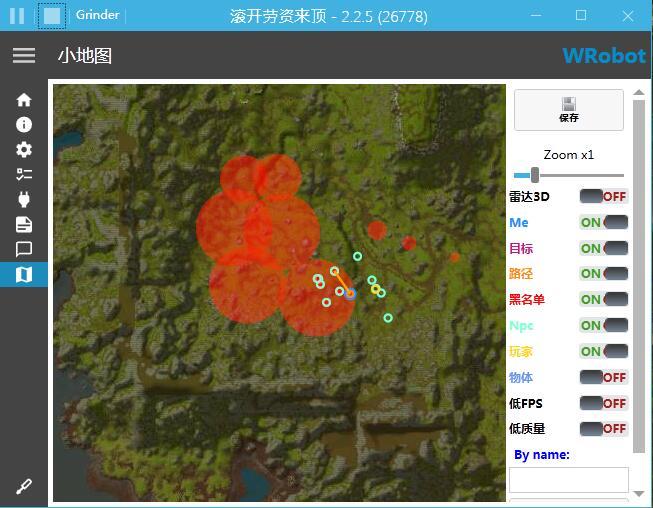
cant find path? 24 一月 2019 03H52.log.html
-
I tried,still the same
-
Yea I do enable ninja,but few minutes later it doesn't work
-
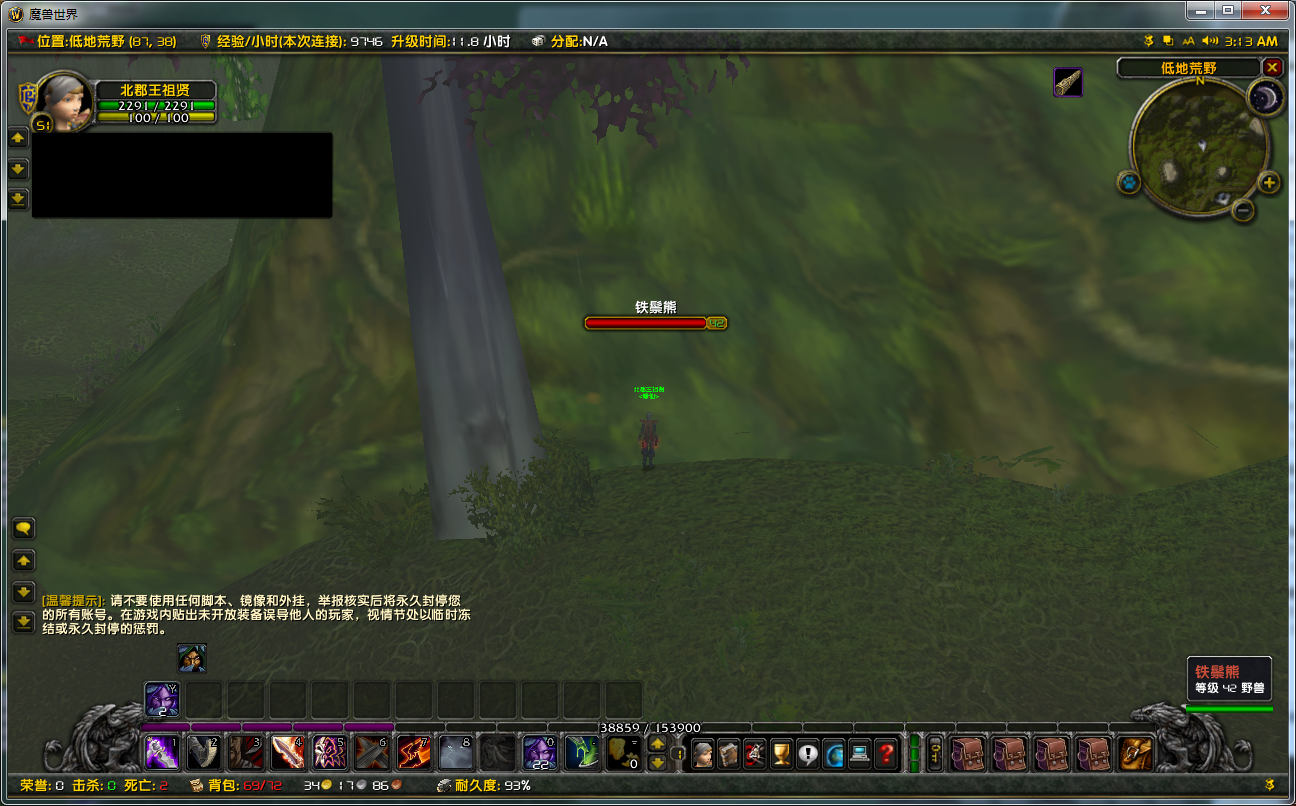
Bot will not skin if mobs don't drop items.It happened after running bot for about 12 minutes,then it skins only after loot,always like this. 27 十二月 2018 03H10.log.html
-
Skining bug still exists
-
Bot will not skin if mobs don't drop items.It happened after running bot for about 12 minutes,then it skins only after loot,always like this. 27 十二月 2018 03H10.log.html
-
27十二月2018 03H10.log.html

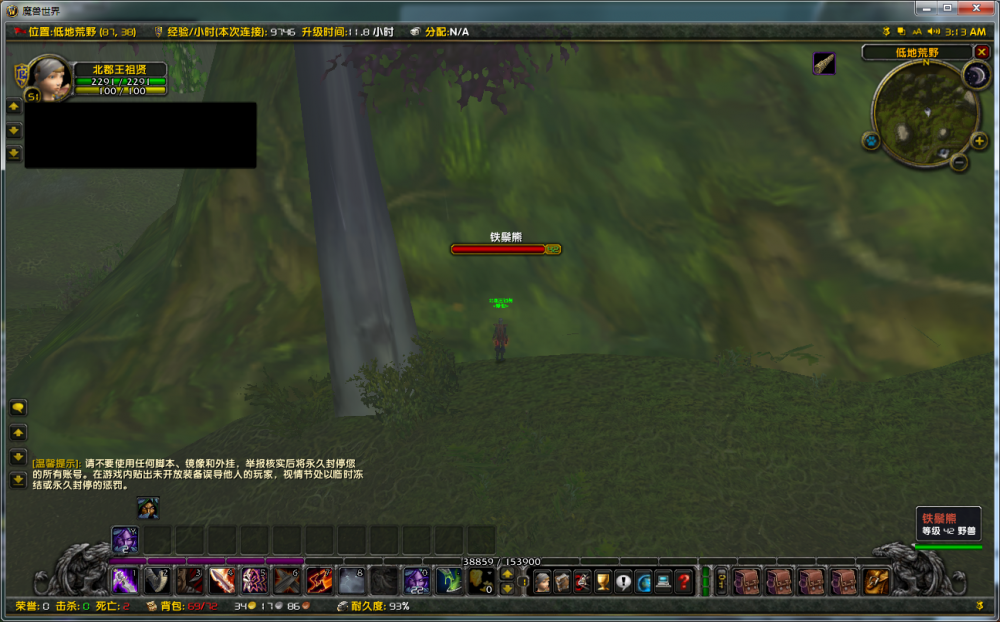 I encounter the same problem with Macro.blacklist doesn't work anymore after update.Can I download the last version from somewhere?I use wrobot for vanilla,but blacklist doesn't work after update.So i want download last version backwhere can i download WRobot old versions for 1.12?