




tehdrakken
Members
-
Joined
-
Last visited
-
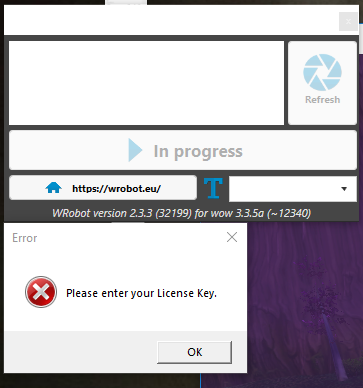
I closed wow and wrobot, ran the updater and reinstalled. (Cant find "Repair Tool so i assume that is what you were talking about) Gets stuck at "Server Connection..." i double click in the empty field where session select usually is and it tells me to enter license key, but there is no "+" button to enter it anywhere. ? This all worked the first time i did it. Not my first use of this.. just the first time having the issue. Thanks for everyone's input.
-
As in the updater to reinstall it? Also doesn't work. I cant find a "repair tool" only the updater / reinstaller
-
Thanks, I've tried this a few times.. No dice. ?
-
Hey, I've switched to playing WOTLK and updated Wrobot to suit. However now when i open the license isnt attached and it gets stuck at "Server Connection..." and i cant add lisence or continue from there.. See attached log. (i dunno what im looking at in the log so i hope you do.) 12 Jun 2019 10H55.log.html
-
Started using this with lvl 15 warrior, working great to support my mage (using party) i havent been able to see if it differentiates between single and multi target with thunderclap yet or not. but so far so good. this is great. Thank for the hard work! Will update as i go.