domtee
Members
-
Joined
-
Last visited
Everything posted by domtee
-
I have a problem where WRobot is freezing for a long period of time. Sometimes it comes back to active, sometimes it crashes the game. What could be causing this? Thanks.
-
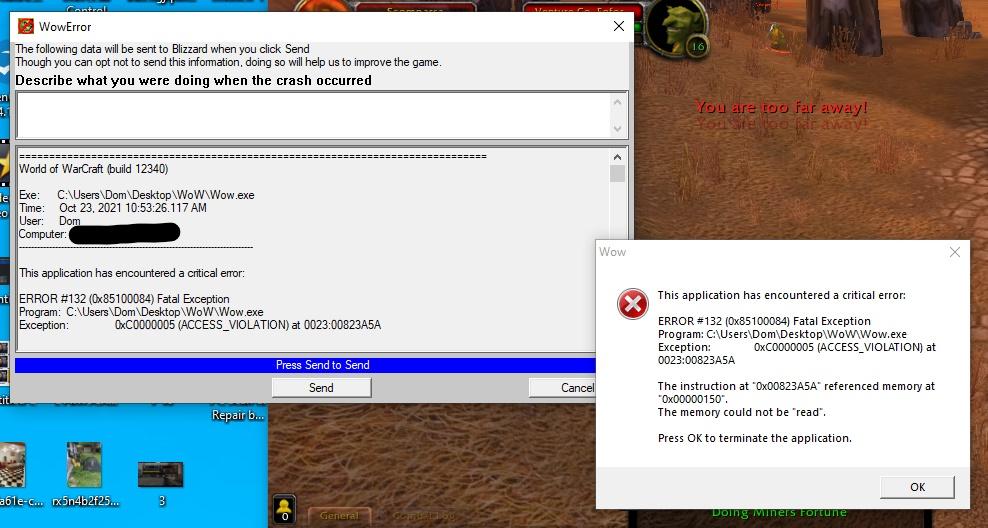
Still having issues, even after downloading a new clientSo far I know that it is not the plugin because it still crashes when disabled. I will try download a client from a different place after work. Do you have a recommendation of where to download it from?I downloaded WoTLK client from Warmane. Addons disabled, only plugin I have is "WholesomeInventory_Manager.dll". Added antivirus exception rule for WRobot & WoW client. Still I am having the same issue. Error comes up 5 minutes after starting WRobot.
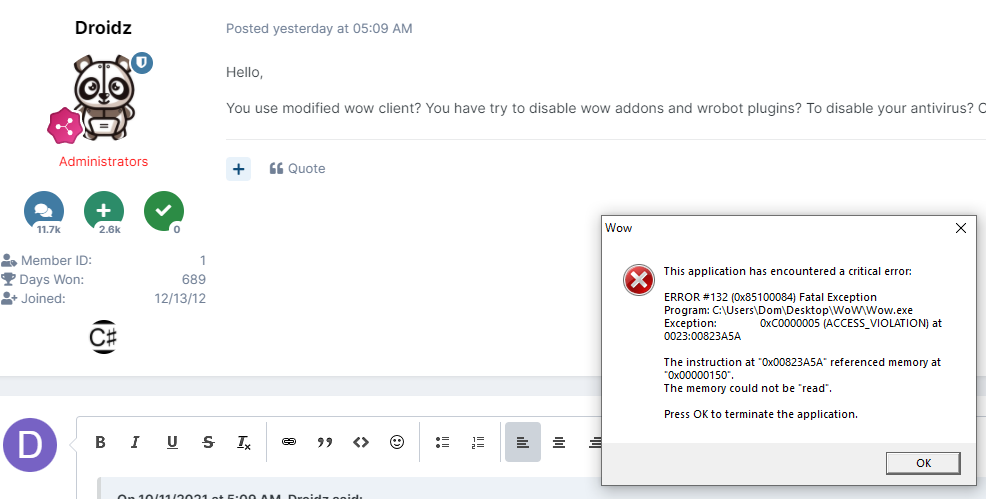 I am getting an "Error #132" message and I read somewhere to try to launch WRobot using "DX Hook". That made me realize that all WRobot apps, other than "No DX Hook" are freezing and causing my WoW client to freeze as well. On the off chance that the apps do load, the game client remains frozen. Any ideas? *"ERROR #132 (0x85100084) Fatal Exception!" seems to happen consistently at the start of combat. Until now, I have only been able to use "No DX Hook"Oh, okay cool. Unrelated, but I am having a hard time with it going back to town for drinks when I run out. Are there settings that you can recommend for that?Is it possible to just create a profile that says "Kill everything within 50 yards" of the place where you start the bot?