Skip to content
View in the app

A better way to browse. Learn more.

WRobot

A full-screen app on your home screen with push notifications, badges and more.

To install this app on iOS and iPadOS
  1. Tap the Share icon in Safari
  2. Scroll the menu and tap Add to Home Screen.
  3. Tap Add in the top-right corner.
To install this app on Android
  1. Tap the 3-dot menu (⋮) in the top-right corner of the browser.
  2. Tap Add to Home screen or Install app.
  3. Confirm by tapping Install.

Plainview

Members
  • Joined

  • Last visited

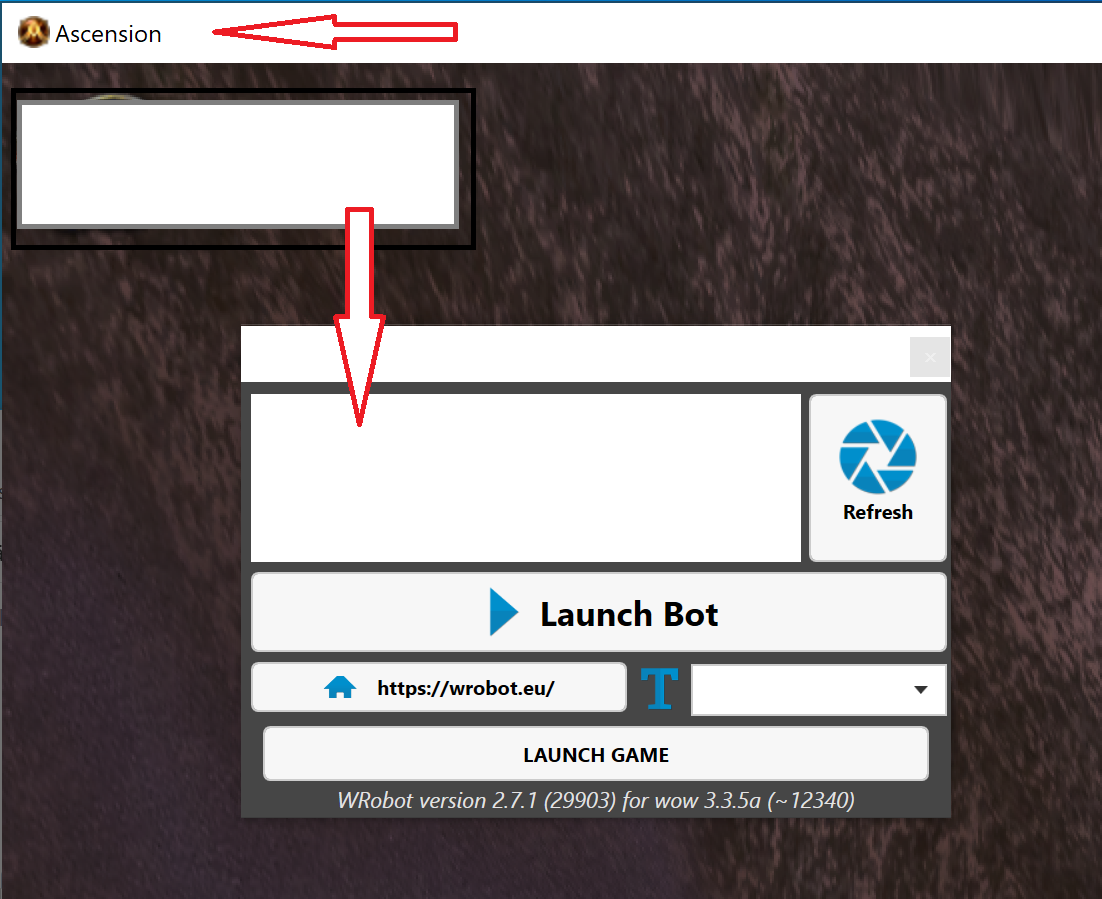
  1. I'm now running Ascension in 32bit (important) but the problem persists. May the problem be: Even if wRobot launches the game probperly (since I set the Ascension directory), it won't recognize Ascension as an instance of WoW because it's using a different file name? What's the solution? Is there a way to set a custom name for the window/instance of wow? *FIXED: Solution was renaming the window using program linked in an earlier post on this forum.
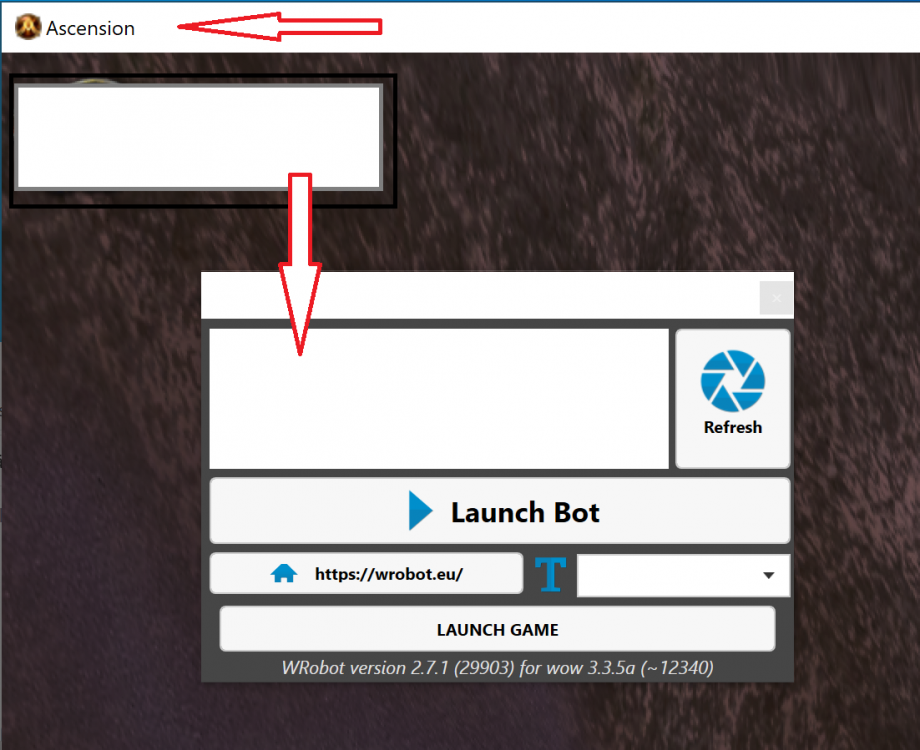
  2. Is Wrobot currently working on Ascension? I've installed the program and updated all files (including the extra ones listed in the readme file). However I have an issue where the app not working right? I've selected Ascension as my file and the game launches correctly when I press "Launch Game" Thank you! 🙂
Account

Navigation

Search

Search

Configure browser push notifications

Chrome (Android)
  1. Tap the lock icon next to the address bar.
  2. Tap Permissions → Notifications.
  3. Adjust your preference.
Chrome (Desktop)
  1. Click the padlock icon in the address bar.
  2. Select Site settings.
  3. Find Notifications and adjust your preference.