



Skip to content
View in the app

A better way to browse. Learn more.

WRobot

A full-screen app on your home screen with push notifications, badges and more.

To install this app on iOS and iPadOS
  1. Tap the Share icon in Safari
  2. Scroll the menu and tap Add to Home Screen.
  3. Tap Add in the top-right corner.
To install this app on Android
  1. Tap the 3-dot menu (⋮) in the top-right corner of the browser.
  2. Tap Add to Home screen or Install app.
  3. Confirm by tapping Install.

neravar

Members
  • Joined

  • Last visited

Everything posted by neravar

  1. Where is that? I dont see a settings section int he client? Yes I am running in window mode
  2. I do not know how to turn on "UseLuaToMove". If that is referring to "click to move" ascension WoW does not have that option via its interface
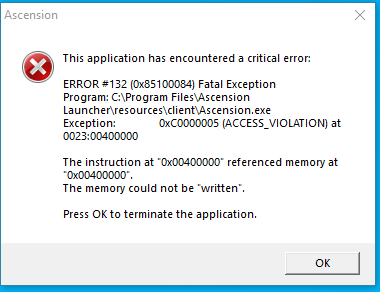
  3. Hello I am trying to use this for Ascension. I can launch WRobot, select my game window, and click Launch game. About 5 seconds after entering the product key the bot crashes with a memory access error. I have attempted to launch as administrator with no DX hook with the same results. Installed slimdx as well Also I have attempted all the recommendations outlined here 2 Dec 2021 14H20.log.html
Account

Navigation

Search

Search

Configure browser push notifications

Chrome (Android)
  1. Tap the lock icon next to the address bar.
  2. Tap Permissions → Notifications.
  3. Adjust your preference.
Chrome (Desktop)
  1. Click the padlock icon in the address bar.
  2. Select Site settings.
  3. Find Notifications and adjust your preference.