




ZknB
Members
-
Joined
-
Last visited
Everything posted by ZknB
-
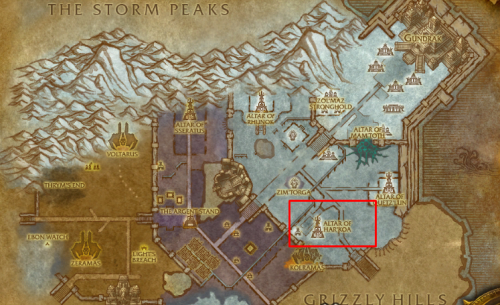 Hi there. Bot led the character to the area no problemo. Runs circles (can see the navigator) until it dies after being hit too many times... Any fix ? Using AIO as Fight Class, worked well with other profiles/products. Thanks! Edit : I unchecked "Ignore fights when traveling" and checked "attack before being attacked". It isn't changing the behavior Edit 2 : seems to be fixed by unchecking the other option in advanced options/mount options/"ignore fighting if in ground mount". It is weird there are 2 options seemingly doing the same thing... Works! 👍
 -
Unearthing this topic. I want to upgrade from 1 to 3 sessions but your link isn't helping me. I must be doing something wrong, can you help ? Thanks! E: I sent a message to sales through my subscription. Hope that's the way to do it!
