




Skip to content
View in the app

A better way to browse. Learn more.

WRobot

A full-screen app on your home screen with push notifications, badges and more.

To install this app on iOS and iPadOS
  1. Tap the Share icon in Safari
  2. Scroll the menu and tap Add to Home Screen.
  3. Tap Add in the top-right corner.
To install this app on Android
  1. Tap the 3-dot menu (⋮) in the top-right corner of the browser.
  2. Tap Add to Home screen or Install app.
  3. Confirm by tapping Install.

Pandaria Mining v1

(8 reviews)

1 Screenshot

Hey you dirty sluts.

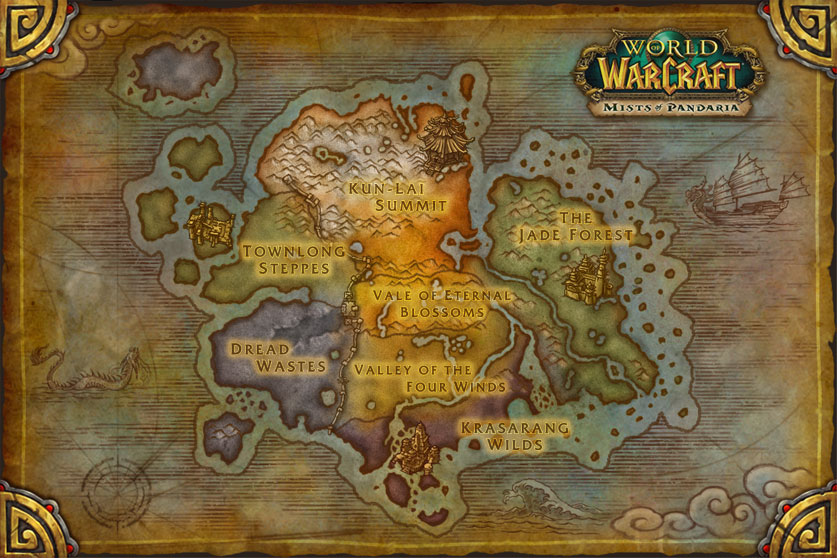
It's so sketchy flying circles in a zone mining ore for hours on end. Other players begin to notice you and your predicable behavior. And they get pissed when you steal their ores. So I made this profile which travels from zone to zone in Pandaria mining ore.

This profile does one lap in each zone, then moves to the next zone. By the time you return to a zone active players will have found something else to do. A complete run of this profile takes about 45-60 minutes.

I leave this running 24/7. Occasionally it gets a little stuck up in southern jade forest, but wrobot figures out what to do. In the future I may remove that part of the profile.

I play Horde, so Alliance botters may have some trouble since this profile flies right over some Horde cities.

It's great for Ghost Iron Ore, Black Trillium Ore, White Trillium Ore, Kyparite.

What's New in Version v1

Released

  • Initial release.

User Feedback

You may only provide a review once you have downloaded the file.

   0 of 1 member found this review helpful 0 / 1 member

   0 of 1 member found this review helpful 0 / 1 member

   1 of 2 members found this review helpful 1 / 2 members

   0 of 1 member found this review helpful 0 / 1 member

   0 of 1 member found this review helpful 0 / 1 member

   0 of 1 member found this review helpful 0 / 1 member

   0 of 1 member found this review helpful 0 / 1 member

   0 of 1 member found this review helpful 0 / 1 member

Account

Navigation

Search

Search

Configure browser push notifications

Chrome (Android)
  1. Tap the lock icon next to the address bar.
  2. Tap Permissions → Notifications.
  3. Adjust your preference.
Chrome (Desktop)
  1. Click the padlock icon in the address bar.
  2. Select Site settings.
  3. Find Notifications and adjust your preference.