
Skip to content
View in the app

A better way to browse. Learn more.

WRobot

A full-screen app on your home screen with push notifications, badges and more.

To install this app on iOS and iPadOS
  1. Tap the Share icon in Safari
  2. Scroll the menu and tap Add to Home Screen.
  3. Tap Add in the top-right corner.
To install this app on Android
  1. Tap the 3-dot menu (⋮) in the top-right corner of the browser.
  2. Tap Add to Home screen or Install app.
  3. Confirm by tapping Install.

[FREE][A] Mining 1 - 450 1.0.0

(1 review)

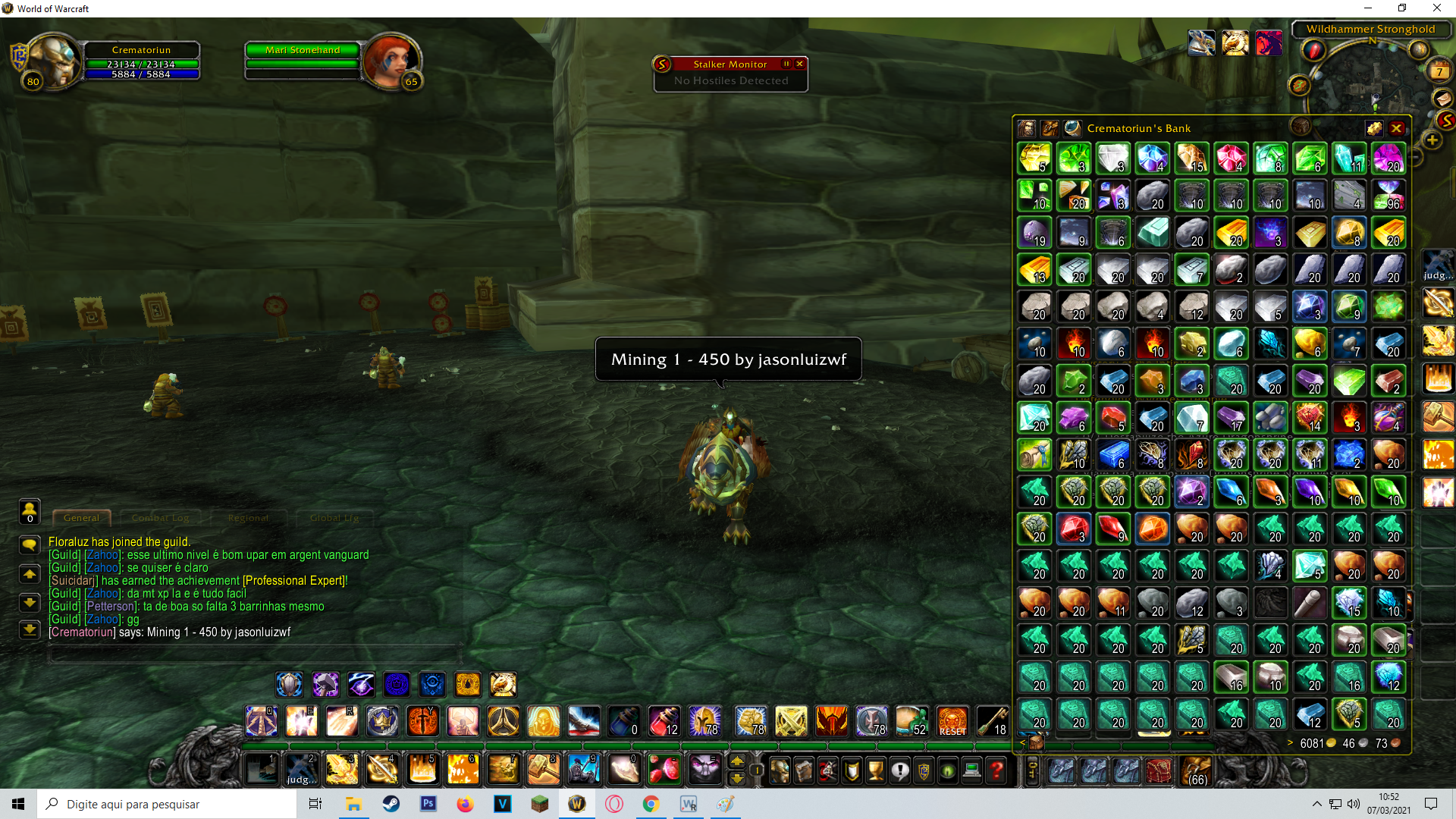
2 Screenshots


Thinking of people who, like me, do not earn in Euro or in dollars (I am Brazilian), the value of most waste pickers here is high because we pay in reais and the salary is very low.


I created this leveling mining for people who can't afford it. I will be improving constantly according to your feedback. I hope I have helped many people!

if you want to make a donation contact my email: [email protected]

HOW TO USE:

  1. Extract the files to theWrobot > Profiles> Gatherer folder.
  2. Open the wrobot.
  3. In Main select Gatherer > Product Settings > Profile and select leveling.
  4. Select the General Settings > Fight Class AIO.dll 
  5. In General Settings:
  • Use Flying Mount [ON]
  • Repair items [ON]
  • Harvest Minerals [ON]

Currently added:

  1. [A] Elwynn Forest - Mine 1-65
  2. [A] Westfall - Mine 65 -125
  3. [A] Duskwood - Mine 125 -175
  4. [A] Burning Steppes - Mine 175 - 275
  5. [A] Hellfire Peninsula- Mine 275 - 350
  6. [A] Shadowmoon Valley - Mine 325 - 350
  7. [A] Borean Tundra -Mine 350 - 375
  8. [A] Sholazar Basin - Mine 400 - 450


User Feedback

You may only provide a review once you have downloaded the file.

slk

   1 of 1 member found this review helpful 1 / 1 member

Hey thank you Jason!
These profiles working great, except Duskwood which is getting stuck in fences all the time. Instead of Duskwood, I would recommend running older Wetlands Mining profile that is also uploaded on this website.
Thank you very much!!!

Account

Navigation

Search

Search

Configure browser push notifications

Chrome (Android)
  1. Tap the lock icon next to the address bar.
  2. Tap Permissions → Notifications.
  3. Adjust your preference.
Chrome (Desktop)
  1. Click the padlock icon in the address bar.
  2. Select Site settings.
  3. Find Notifications and adjust your preference.