




Hello all.
Never though much about trying to write a plugin for a bot until I discovered WRobot. With all the AI craze going on I though, well why not let chatGPT respond to whispers recieved.
This is version 1.0 as it works as well as I had initially planned. It includes:
- Reading whispers recived and the username they are from
- Sending recived whispers to OpenAI (chatGPT) or a local ai such as gptforall or any other that has a openai like rest api
- Responding to the user who sent the whisper with the respond from AI
- Set a context for the AI as a starter message so it knows what it is doing: new { role = "system", content = "You are an avid and helpful world of warcraft player" },
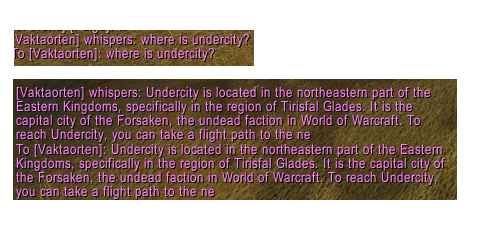
The image I attached is first of me whispering myself a question and then the AI response
Currenly the settings ("YOUR_API_KEY_HERE") is in this .cs file. May be good to expand upon the code and add to Settings if you so wish. Other suggested featured I could think of:
- Set context message in Settings
- Pick model from dropdown
- White / Black list
Anywho, I tested this with Vanilla and it works well there. Perhaps some longer initial whispers will cause some issues with lua but should be ok
Feel free to use and/or expand on this to your hearts content 🙂
/Eric

Recommended Comments
Create an account or sign in to comment