





Other players
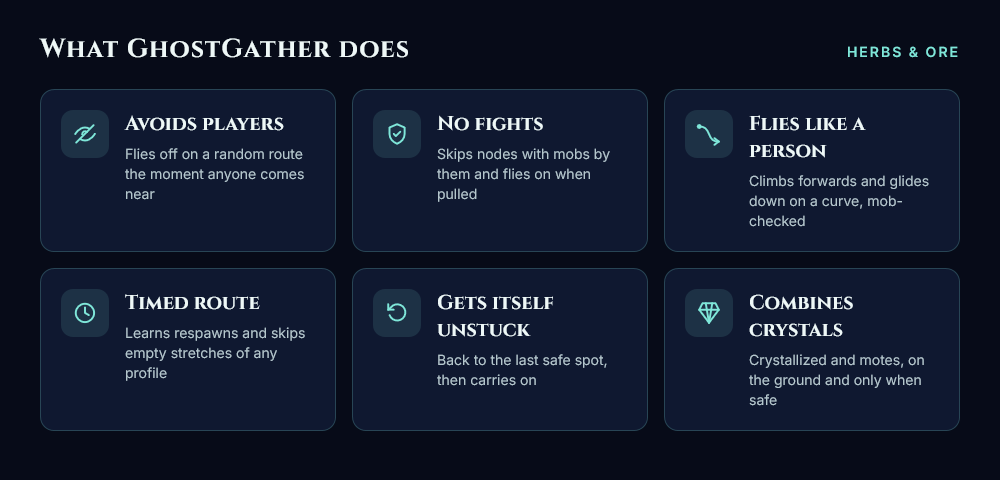
When any player, friendly or not, comes within range, it stops gathering and flies away along a random route that avoids terrain, mobs and no-go areas.
It predicts which way the player is heading, so it breaks away from their line instead of flying alongside them.
On the ground (caves, buildings) it runs along real walkable paths and takes off as soon as it’s outside. If it’s mid-fight, it finishes the fight first.
Once it’s far enough away, it picks your route back up at the nearest point.
It skips nodes with another player standing next to them.
AFK players, your party and an ignore list don’t count.
No fights
It skips any node with a mob next to it, measured from the mob’s edge, so big mobs like jormungar count properly. Flying mobs hovering above count too.
It knows exactly which node WRobot is going for and stops the trip if that node isn’t safe.
If a mob pulls you while you’re flying, it keeps flying instead of landing to fight.
Flies like a person
It takes off climbing forwards, after a moment’s “reaction time”.
It glides down to nodes on a gentle curve, steep at first and levelling off, instead of diving straight down.
Every part of the glide is checked against mobs and terrain. If no glide is clear, it drops straight down; if that isn’t clear either, it skips the node.
Timed route (works with any profile)
It learns where the nodes on your route are and when each one comes back.
While flying, it cuts across stretches of your route where nothing will be up yet. Shortcuts are only taken along a clear line, away from mobs.
Gets itself unstuck
When stuck, it blacklists what it was going for, flies back to the last spot where it was moving freely, and carries on with the route.
It only stops the bot if that fails three times.
Combines crystals and motes
10 Crystallized X becomes Eternal X, and 10 Mote of X becomes Primal X.
It does this when you’re already on the ground after a pick, never in the air and never next to a mob.
Safety net
It stops, pauses or warns you on: no progress, repeated deaths, GM whispers, other whispers, sudden health loss, or nothing gathered for a long time.
It shows on-screen alerts with a sound, and can send optional phone alerts via Discord or Telegram.
Extras: other players shown on your minimap, a heatmap of where and when players turn up, and a session report.
How to use (please read)
Quote
Put GhostGather.cs in your
WRobot\Pluginsfolder.Click Settings on the plugin to set it up. Everything is in tabs, with an explanation under each option.
Load your herb or mining profile and start Gatherer as normal.
Tip: WRobot’s own Human turns and Smooth path options work nicely alongside it.
How to report a bug
Quote
Find your log in
WRobot\Logs(the .html file from that session).Post it here, with the time it happened and what you saw.
GhostGather writes down why it does everything: why it skipped a node, which escape route it picked, why it couldn’t find a way down. So the log usually shows the problem straight away.
What's New in Version 1.0.0
Released
No changelog available for this version.
You may only provide a review once you have downloaded the file.
There are no reviews to display.