Skip to content
View in the app

A better way to browse. Learn more.

WRobot

A full-screen app on your home screen with push notifications, badges and more.

To install this app on iOS and iPadOS
  1. Tap the Share icon in Safari
  2. Scroll the menu and tap Add to Home Screen.
  3. Tap Add in the top-right corner.
To install this app on Android
  1. Tap the 3-dot menu (⋮) in the top-right corner of the browser.
  2. Tap Add to Home screen or Install app.
  3. Confirm by tapping Install.

Blazeone

Members
  • Joined

  • Last visited

  1. Does this profile not work with TBC or WOTLK? I'm getting an error and failed to start.
  2. Thank you. Clearing cache fixed the issue!
  3. Yeah I moved to a different zone and it works great like normal.
  4. The bot has been running grate until I have reached Zangarmarsh, It will crash randomly for no reason it seems. I have posted a log. I have done a fresh install and have changed profiles and im still having the same issue. 11 Mar 2024 21H12.log.html
  5. I'm so happy its just not me. I have enough time to go use the bathroom and make a drink all before it connects to the game.
  6.    Blazeone reacted to a review on a file: [Free] Wholesome Inventory Manager
  7.    Droidz reacted to a post in a topic: Getting logged out
  8. Thank you! it seems to be running fine now!
  9.    Blazeone reacted to a post in a topic: Getting logged out
  10. @DroidzAny idea?
  11. Blazeone started following Getting logged out
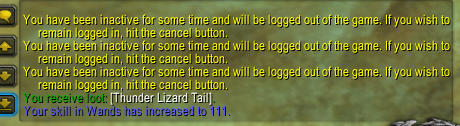
  12. I keep getting logged out due to inactivity even when moving. I have enabled use lua to move and still getting the same issue after updating bot. On 2.4.3 server. edit: Using outdated bot and im no longer getting this issue. 14 Nov 2021 17H11.log.html
  13. Any addon for BOP on 2.4.3?
  14. Blazeone started following Payment options
  15. Have you thought about adding cryptocurrency payment options? Nano is 0 fees if that is something that you are looking at.
  16. Thanks this worked great cant wait to see what else you got ?

Account

Navigation

Search

Search

Configure browser push notifications

Chrome (Android)
  1. Tap the lock icon next to the address bar.
  2. Tap Permissions → Notifications.
  3. Adjust your preference.
Chrome (Desktop)
  1. Click the padlock icon in the address bar.
  2. Select Site settings.
  3. Find Notifications and adjust your preference.