





*** Plugin may require English client ***
I have seen a few forum posts looking to enhance the bot safety and added features like being able to use a skill when the user pauses the bot. This plugin uses the robotManager.FiniteStateMachine.State API in order to perform a skill before the actual pause is initiated.
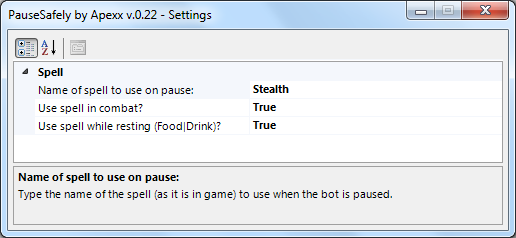
Be sure to type the name of the spell in the Settings window exactly as you see it in game. I have tested this some, but it may require some tweaking.
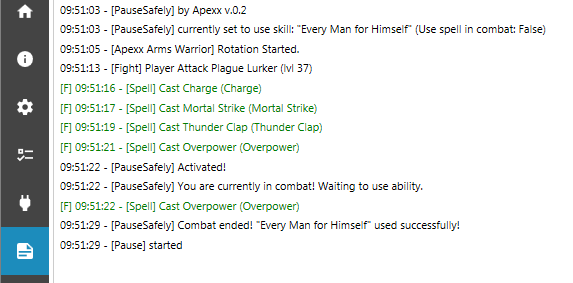
- If you pause the bot manually during combat and the settings to allow the spell to be used in combat is set to false, it will catch the input, wait until the fight is over, and then use the spell.
- If you set the use spell during combat to true (ie: Vanish), and manually pause the bot, it will cast the ability before pausing the bot.
Another great feature is if you have the bot's advance settings to pause the bot when a player is within the default search radius of 1000, it will pause the bot, again changing the bot state and activating this plugin. Needs more testing! The servers I have tried this on were not very populated and it was tough to check if players were nearby.
What's New in Version 0.2.3
Released
No changelog available for this version.

You may only provide a review once you have downloaded the file.
There are no reviews to display.