




Skip to content
View in the app

A better way to browse. Learn more.

WRobot

A full-screen app on your home screen with push notifications, badges and more.

To install this app on iOS and iPadOS
  1. Tap the Share icon in Safari
  2. Scroll the menu and tap Add to Home Screen.
  3. Tap Add in the top-right corner.
To install this app on Android
  1. Tap the 3-dot menu (⋮) in the top-right corner of the browser.
  2. Tap Add to Home screen or Install app.
  3. Confirm by tapping Install.

Do Not Sell My Loot! 1.0.1

(2 reviews)

2 Screenshots

Hey wRobot Community, 

this automates the process of creating a "Do-Not-Sell List" instead of doing it for every bot again.


What does it?

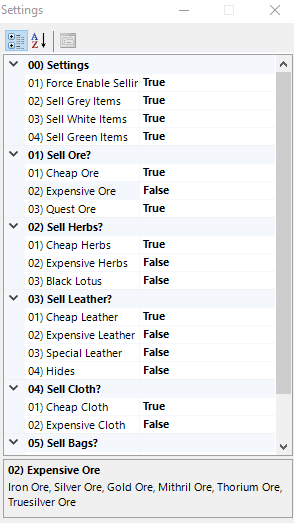
It makes sure that valuable items (e.g. high tier herbs/ores) will not get vendored. The Plugin handles everything for you. No need to adjust the "Do-Not-Sell List" for every bot. Just use the easy to use settings of my plugin to sort out what should be vendored and what not. It also enables selling by default for every bot.

Currently implemented Categories

  • Ores
  • Herbs
  • Leathers/Hides
  • Cloth
  • Bags

Can you add Item/Category XYZ?

Just private message me, I can do that.


Other-Products.png

Other-Product-Grinder-Horde.pngOther-Product-Quester-Horde.pngOther-Product-Grinder-Alliance.pngOther-Product-Engineering.png

Disclaimer: I am not associated with the wRobot company in any way!


What's New in Version 1.0.1

Released

  • Added "Cloth" Category
  • Added "Bags" Category
  • Added Settings to force selling by default

User Feedback

You may only provide a review once you have downloaded the file.

   1 of 1 member found this review helpful 1 / 1 member

The author of this addin has the best support going. He's got both paid and free modules. Great module, great developer.

   1 of 1 member found this review helpful 1 / 1 member

Thanks for this plugin. Needed that since 1989 ?

Account

Navigation

Search

Search

Configure browser push notifications

Chrome (Android)
  1. Tap the lock icon next to the address bar.
  2. Tap Permissions → Notifications.
  3. Adjust your preference.
Chrome (Desktop)
  1. Click the padlock icon in the address bar.
  2. Select Site settings.
  3. Find Notifications and adjust your preference.
