




hi together,
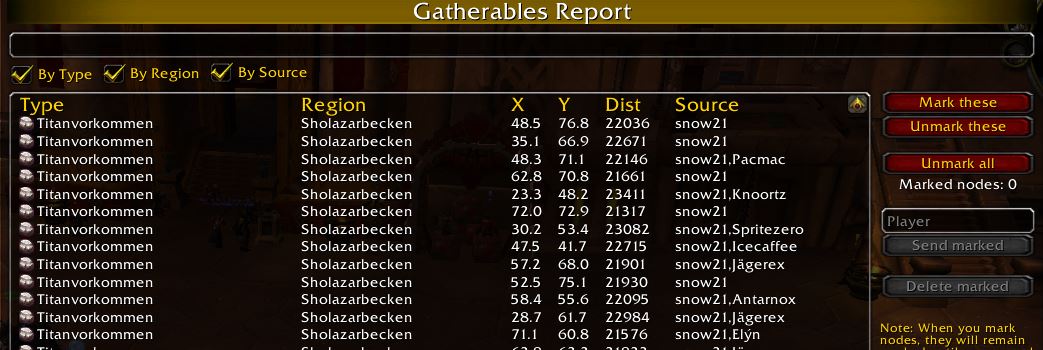
I have collected all nodes for the server "rising-gods (german language)".
If you want you can also upload the gatherer.lua from your servers.
Please only if you didn't import from wowhead or gatherer_mate_data, because here the data from the official servers are transferred to the database, but they don't match with the private servers.
12.03.2021 How to install
English
Installing the database:
* Quit WoW completely
* Download the Gatherer.lua and
* Find the WoW folder, e.g. C:\Program Files (x86)\World of Warcraft\.
* Copy the Gatherer.lua into the subfolder WTF\Account\{$ACCOUNTNAME}\SavedVariables\ ({$ACCOUNTNAME} stands for your account name of course)
German
Installation der Datenbank:
* WoW komplett beenden
* Die Gatherer.lua downloaden und
* Den WoW-Ordner finden, z. B. C:\Program Files (x86)\World of Warcraft\
* Die entpackte Gatherer.lua in den Unterordner WTF\Account\{$ACCOUNTNAME}\SavedVariables\ kopieren ({$ACCOUNTNAME} steht natürlich für euren Accountnamen)
Die Daten können auch ohne den Bot genutzt werden - wer auf dem Server spielt hat so die meisten Nodes für das Addon "gatherer"
greetings
snow21
What's New in Version 1.0.1
Released
More Position - Hord
- Talamin and elitecasaj00
-
 2
2
You may only provide a review once you have downloaded the file.
There are no reviews to display.