Syberis
Members
-
Joined
-
Last visited
-
Hey, did you purchase the FCs somewhere or did you make them yourself? And do you think it's safe to use WRobot on Turtle just with FCs?
-
Up! What is the current status of fightclasses on TurtleWoW? I’d like to purchase this one --> https://wrobot.eu/files/file/1489-paid-pve-raid-beastmaster-hunter-1-60-vanilla1121-by-ordush by @Ordush Will it work?
-
-
Syberis changed their profile photo
-
So, you think just using rotation bot on Onyxia (warmane realm) should be safe? Pretty interesting with TBC coming in November
-
 Syberis reacted to a post in a topic:
Matenia's HumanMasterPlugin, all Fightclasses and experimental projects for later expansions, including a Quester
Syberis reacted to a post in a topic:
Matenia's HumanMasterPlugin, all Fightclasses and experimental projects for later expansions, including a Quester
-
-
 Zer0 reacted to a review on a file:
[Free] Project Wholesome - TBC AIO – 13 solo rotations + 18 party rotations
Zer0 reacted to a review on a file:
[Free] Project Wholesome - TBC AIO – 13 solo rotations + 18 party rotations
-
 I've tried these rotations for a few classes and they work very well! Truly applause to Zer0 and his team for this very useful GIFT to wRobot users, we are very grateful for your work and hope more projects like this will come!
- 29 comments
- 13 reviews
-
-
- 1
-
-
-
-
-
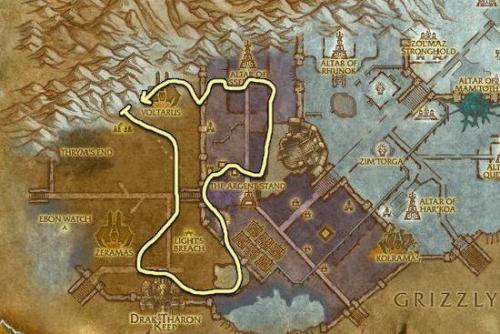 Hello! This is a profile dedicated to the gathering of Talandra's Rose in Zul'Drak. The bot will make the precise path where these herbs usually spawn most! Enjoy!
 -
Probably Sholazar Basin
-
Useless also with flight mount, it goes against the ground and fits against objects / walls on the map.
-
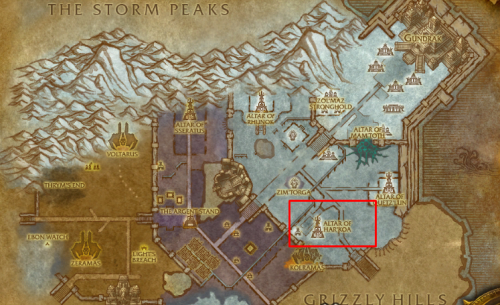 Same here!
 -
Done, thank you!
-
Hi, I use Wrobot on Firestorm (just switched to 7.3.5) and I'm trying to fix the various problems encountered! For example, during this quest (http://www.wowhead.com/quest=44033/aw-nuts) the bot is not able to interact with the squirrels or collect the fruits on the ground because he does not dismount! Some advice? I'm using Camelot's profile for world quests