specnaz27
Members
-
Joined
-
Last visited
Everything posted by specnaz27
-
I did not know that..thank You very much, and sorry for trouble
-
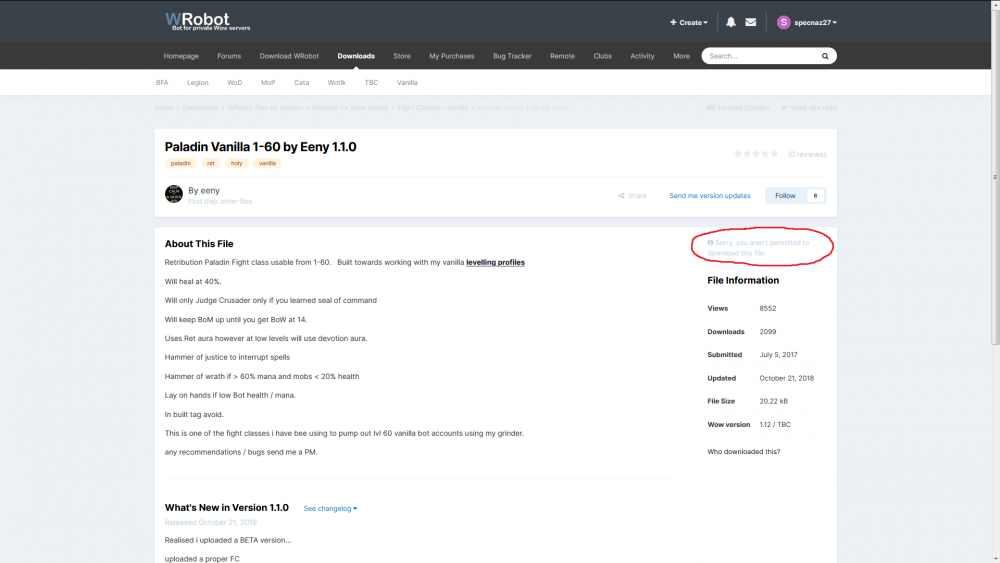
No change...any file that i want to download from webside is restricted example:
-
I cant download any file from webside (combat profiles etc.) Where was a download button now is message: "Sorry, you aren't permitted to download this file". I try to rellog but nothing helps. I have subscription so i dont know what happend.
-
-
 editor: http://www.zezula.net/en/mpq/download.html blank files for error casting (just have to change name of the files)...there many others blank files for example: anoying GCD noise and many others https://www.wowinterface.com/downloads/info10162-Noerrorsound.html ps: uSpellIconPickup.wav and uSpellIconDrop.wav ale in sound/interface folder (drag and drop to replace files...very simple with this editor)
- 166 comments
- 6 reviews
-
Thank You Ordush for quick answer. This is just very minor issue...you are great. I replaced uSpellIconPickup.wav and uSpellIconDrop.wav files for blank ones in sound.MPQ file and now i dont have this noise anymore:)
- 166 comments
- 6 reviews
-
-

- 1
-
-
Hello... This is great...but i have one question. Im using rutine as a rotation and i have this wierd noise every second when i have no target. This noise sounds like moving skill from one bar to another. Anyone know whats going on?
- 166 comments
- 6 reviews