



Skip to content
View in the app

A better way to browse. Learn more.

WRobot

A full-screen app on your home screen with push notifications, badges and more.

To install this app on iOS and iPadOS
  1. Tap the Share icon in Safari
  2. Scroll the menu and tap Add to Home Screen.
  3. Tap Add in the top-right corner.
To install this app on Android
  1. Tap the 3-dot menu (⋮) in the top-right corner of the browser.
  2. Tap Add to Home screen or Install app.
  3. Confirm by tapping Install.

1-60 Enh Shaman lvling by Eeny 1.0.0

(4 reviews)

Trimmed down and subtle  fight classed i use on my Shamans.  Built towards working with my vanilla levelling profiles

Healing wave at 50% health

Shocks when > 25% mana.

 Will keep Rockbiter weapon up when below lvl 30 and WindFury weapon up when above 30.  I found shamans with passable gear where able to grind without downtime from about lvl 15 if you defined healing wave as a food / regen item .

Totems are used sparingly as its looks suspect if the bot is dropping them every fight.  Stoneskin + Mana spring totems will be dropped if you are fighting 2+ mobs.  Searing totem is on a timer so it doesnt drop every mob.

Massive shout-out to @Imod who wrote the timers in the C# profile,

Let me know if you would change anything.

What's New in Version 1.0.0

Released
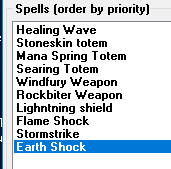
Vanilla shaman skills.PNG

User Feedback

Recommended Comments

AsleepDan

Members

hey guys was wondering how do i get this to use flame shock/flametongue on weapon and lightning shield? currently it only cast rock biter

i got flame shock to work but no lightning shield still or flametongue on weapon, everything is on the action bars

buggdude

Members

is there a difference between the .cs and the .xml file?

Jpizzle

Members

On 7/14/2019 at 2:06 PM, buggdude said:

is there a difference between the .cs and the .xml file?

same question?were do i put the cs file?

Create an account or sign in to comment

Account

Navigation

Search

Search

Configure browser push notifications

Chrome (Android)
  1. Tap the lock icon next to the address bar.
  2. Tap Permissions → Notifications.
  3. Adjust your preference.
Chrome (Desktop)
  1. Click the padlock icon in the address bar.
  2. Select Site settings.
  3. Find Notifications and adjust your preference.
