Skip to content
View in the app

A better way to browse. Learn more.

WRobot

A full-screen app on your home screen with push notifications, badges and more.

To install this app on iOS and iPadOS
  1. Tap the Share icon in Safari
  2. Scroll the menu and tap Add to Home Screen.
  3. Tap Add in the top-right corner.
To install this app on Android
  1. Tap the 3-dot menu (⋮) in the top-right corner of the browser.
  2. Tap Add to Home screen or Install app.
  3. Confirm by tapping Install.

[EasyBeasts] 28-35 Grinder - Nesingwary Camp - Vanilla to WotlK 1.2

(0 reviews)

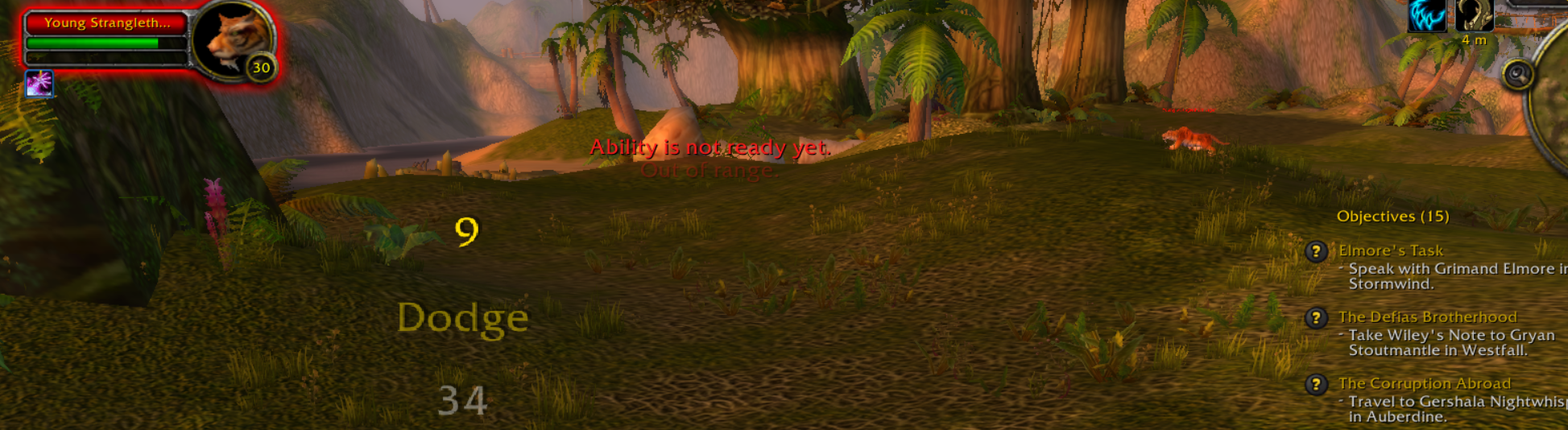
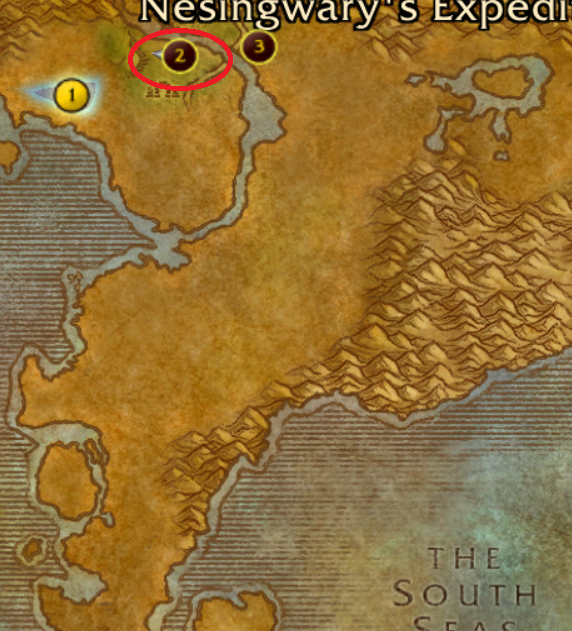
2 Screenshots

I couldn't find a good profile for this level range so I made this grinder which will follow a set path near the Nesingwary camp and grind the beasts. It should work with any client up to Wrath of the Lich King, AFAIK. Please report any issues though. 

This profile is great for weak solo classes as the beasts are far enough apart so they don't pull multiple mobs; it also kills two birds with one stone as you can leave it to do the first Nesingwary quests!

Hope you like it, have fun. 

FYI it works with Vanilla, TBC and WotLK clients. 

What's New in Version 1.2

Released

Updated the loop again as noticed some strange blocking behavior by trees last night! Should work even better now. 

User Feedback

Recommended Comments

TheSmokie

Banned

Good job mate!

paradox_now

Members

10 hours ago, Smokie said:

Good job mate!

Thanks a lot! Noticed some strange behavior last night when it was on loop so have updated the loop/file again! Should be even better this time ?

bubblez222

Members

a nice idea but if you're playing on a pvp server this is one of the worst areas to bot grind because it's extremely high traffic and pvp centric. however, this has nothing to do with the quality of the profile

Create an account or sign in to comment

Account

Navigation

Search

Search

Configure browser push notifications

Chrome (Android)
  1. Tap the lock icon next to the address bar.
  2. Tap Permissions → Notifications.
  3. Adjust your preference.
Chrome (Desktop)
  1. Click the padlock icon in the address bar.
  2. Select Site settings.
  3. Find Notifications and adjust your preference.