tonycalves
Members
-
Joined
-
Last visited
-
-
-
-
-
-
-
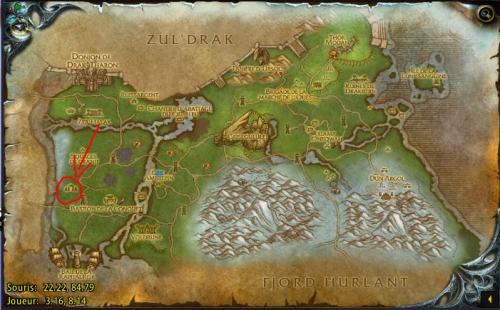 I created this profile because there was no profile for lvl 70-74. It is simple and quick, many mob and they are not far from each other. Not many people go through here. Tell me :)
 -
Bonjour, merci pour ta réponse rapide, j'ai déjà changer le directx en jeu, et ça fait pareil, ça me dit que le directx est pas bon, donc je remet le bon ( le 11 je crois) je peux choisir entre le 11 et le 9, le 9 est vraiment pourris ^^. je te donne le fichier log. il me dit de ne pas toucher les touches avancer etc... mais les racourcis sont par default, et je n'ai aucun addon. Merci 12 déc. 2014 16H28.log.html
-
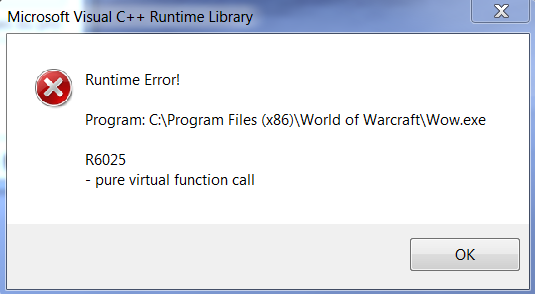
Bonjour, voilà, j'ai acheté le bot y'a quelque jours, au début il marchait niquel, j'ai fais les mises à jours, et depuis, à chaque fois que je lance le bot, il me met une erreur de Visual C++, aucune idée pourquoi, avant ça marchait niquel, j'ai rien fait de spécial, j'ai tout installer les trucs que vous proposer dans votre sujet pour résoudre les bug, rien à faire, ça marche jamais >< j'aimerai savoir pourquoi ? ^^ Merci :)