




Lemke
Members
-
Joined
-
Last visited
-
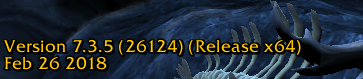
You cannot use wrobot in felsong,cause their client is only 64bit. Wrobot version is fine,but needs to use 32 bit client to let wrobot working as intended.
-
-
Says incorrect game version (server: Uwow) There is some compatible version?Thank you!
-
-
-
Thank you, Any link or tutorial to do that?Just trying to do some rotations a bit more complete.
-
Hello guys!Just asking if its possible to create a multiple rotation,like 3 files,or one,with hotkeys into-game like this: Rotation in loop: Normal attacks,normal rotation without burst spells. Burst rotation: When we want,use hotkey to activate burst rotation file. Defensive: When we want,use that to trinkets,dispels,movility,etc... Thanks in advance for your attention.
-
Hello,im using wrobot fightclass on dps chars,but now trying to do in healer pvp,i have the fightclass druid resto,but dont know how to use it,if just wrotation,party,battlegrounder? I need to target manually my allies?I dont want to bot following my allies automatic. Thanks in advance guys.
-
Any profile to farm shadowfang? Is the twink weapon lvl 19. Thanks in advance. Place: Shadowfang castle dungeon.
