Skip to content
View in the app

A better way to browse. Learn more.

WRobot

A full-screen app on your home screen with push notifications, badges and more.

To install this app on iOS and iPadOS
  1. Tap the Share icon in Safari
  2. Scroll the menu and tap Add to Home Screen.
  3. Tap Add in the top-right corner.
To install this app on Android
  1. Tap the 3-dot menu (⋮) in the top-right corner of the browser.
  2. Tap Add to Home screen or Install app.
  3. Confirm by tapping Install.

konose

Members
  • Joined

  • Last visited

Everything posted by konose

  1. oh, never mind. I installed the retail version on accident...
  2. 23 Dec 2017 09H36.log.html
  3. I cannot get to the logs because i am unable to log in.....
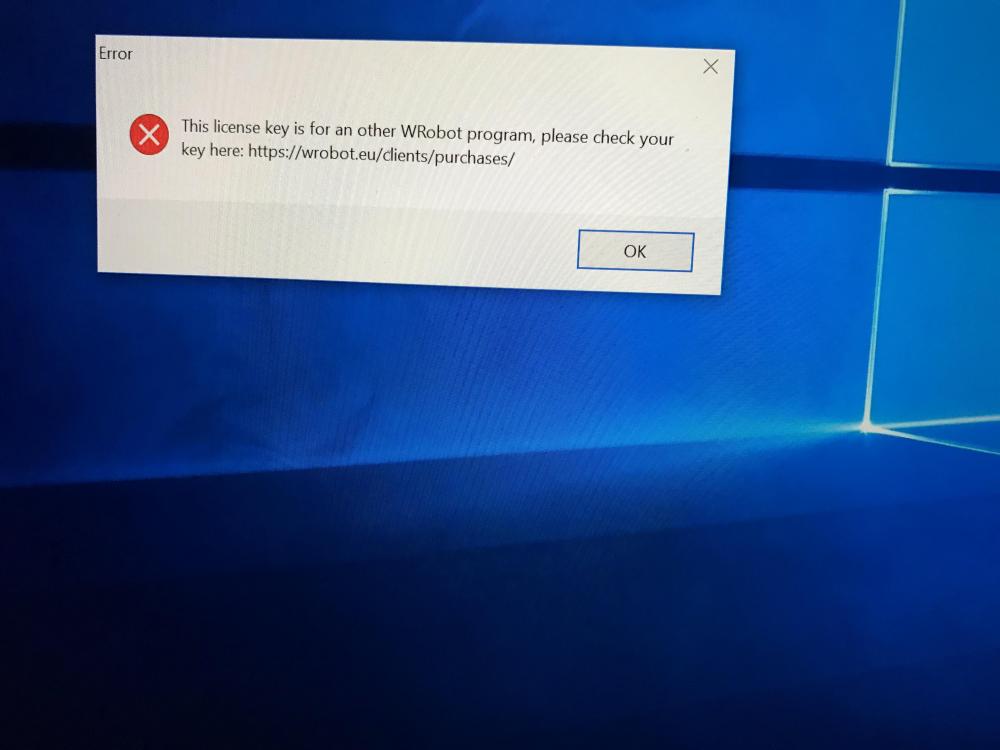
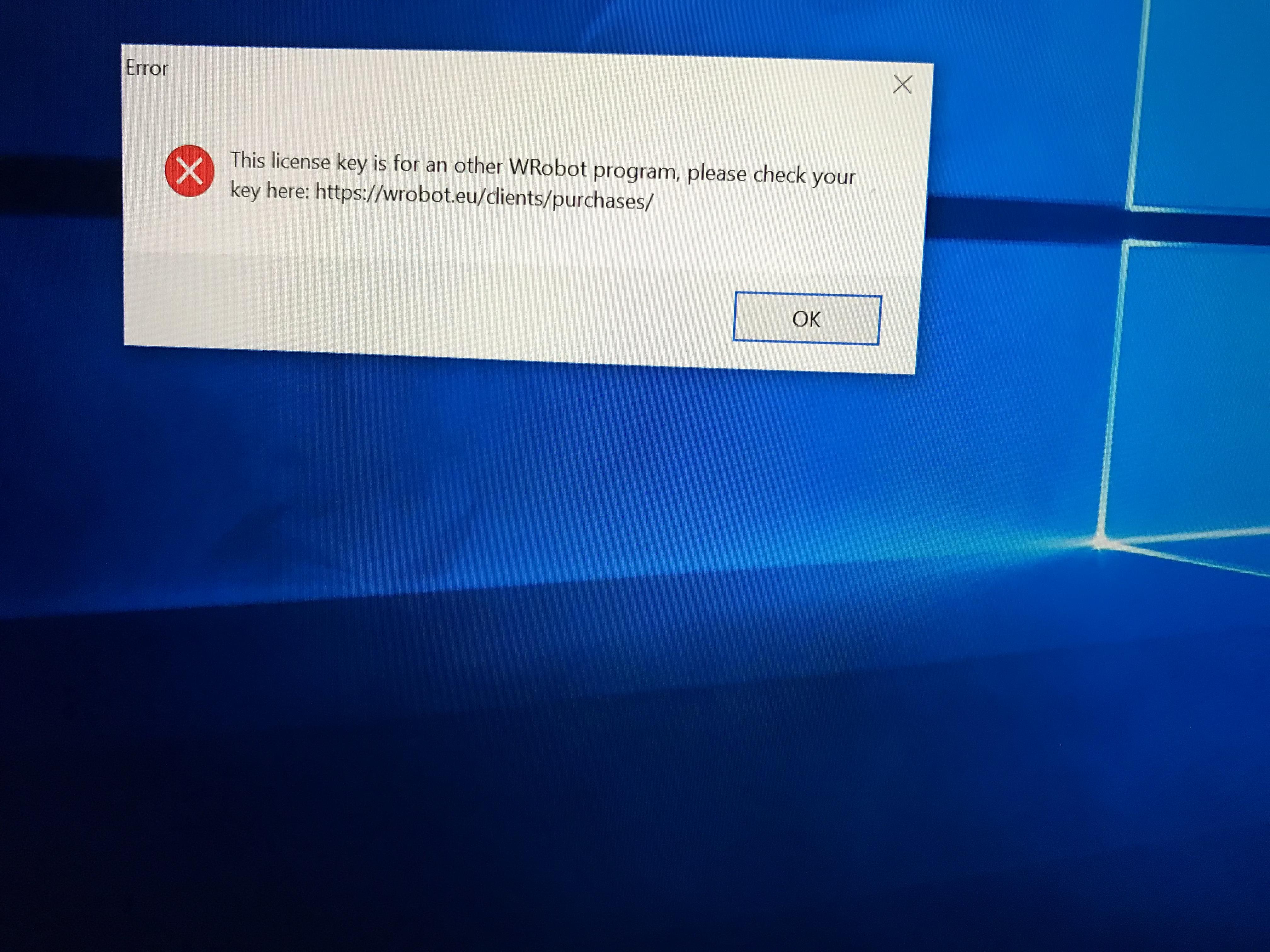
  4. Hi! I purchased the private server subscription and have been using it on my PC at home. I am leaving for a week, and want to run the bot on my laptop while I am away. It keeps telling me that my key is already used by another PC. I understand it says it will only work for one IP at a time, but this can’t mean its locked to only one computer does it???? If this is the case, I don’t understand this restriction. I am not using the bot on both computers at the same time, but just trying to switch over while I am away. Whats the deal?
  5. Does this support leveling as holy?

Account

Navigation

Search

Search

Configure browser push notifications

Chrome (Android)
  1. Tap the lock icon next to the address bar.
  2. Tap Permissions → Notifications.
  3. Adjust your preference.
Chrome (Desktop)
  1. Click the padlock icon in the address bar.
  2. Select Site settings.
  3. Find Notifications and adjust your preference.