Skip to content
View in the app

A better way to browse. Learn more.

WRobot

A full-screen app on your home screen with push notifications, badges and more.

To install this app on iOS and iPadOS
  1. Tap the Share icon in Safari
  2. Scroll the menu and tap Add to Home Screen.
  3. Tap Add in the top-right corner.
To install this app on Android
  1. Tap the 3-dot menu (⋮) in the top-right corner of the browser.
  2. Tap Add to Home screen or Install app.
  3. Confirm by tapping Install.

henkde

Members
  • Joined

  • Last visited

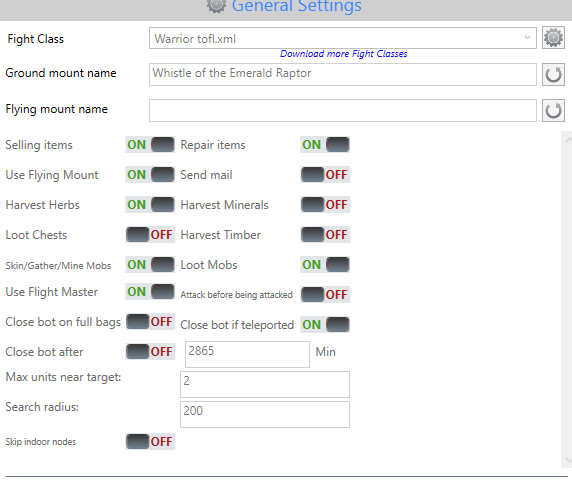
  1. general settings > advanced > macro, set button and time and coditions when to press it.
  2. Is there a possibility to let Wrobot press Action button 1 all the time while there is a macro I'd made manually?
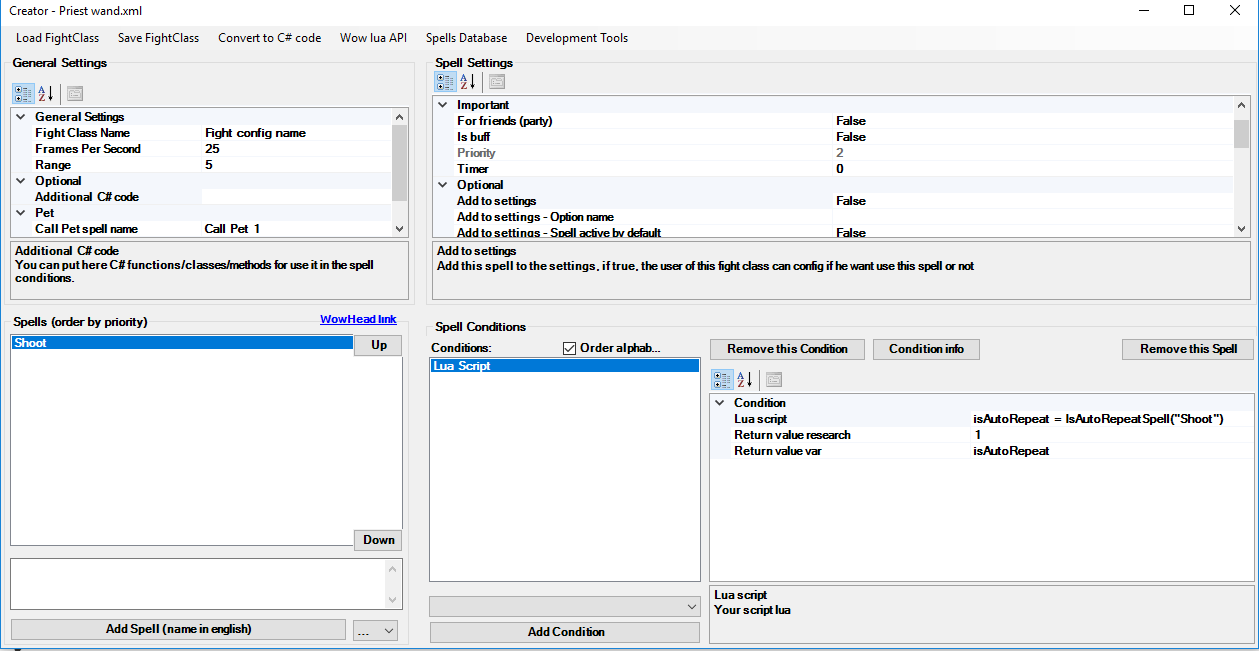
  3. Is there a possibility that i can configure a fight class so it will spam Action bar 1(macro). I will have a macro on that action bar so that's the reason why.
  4.    shaun reacted to a post in a topic: "Wanding"
  5. Honestly i would recomend a video guide so we could be done with this.
  6. Still aint working, Can you find the solution ?
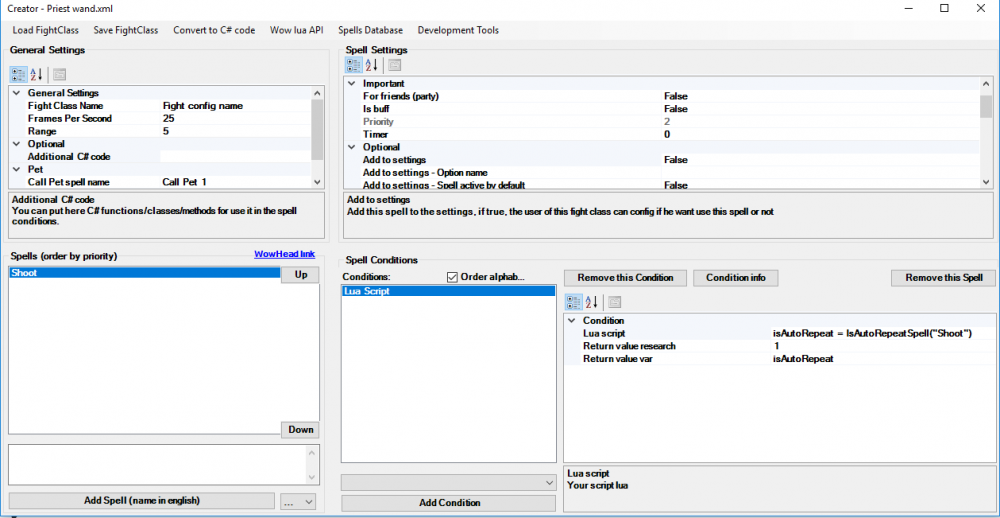
  7. Could perhaps tell how to "add" this lua api? little guide would be helpfull don't know how to get it work atm
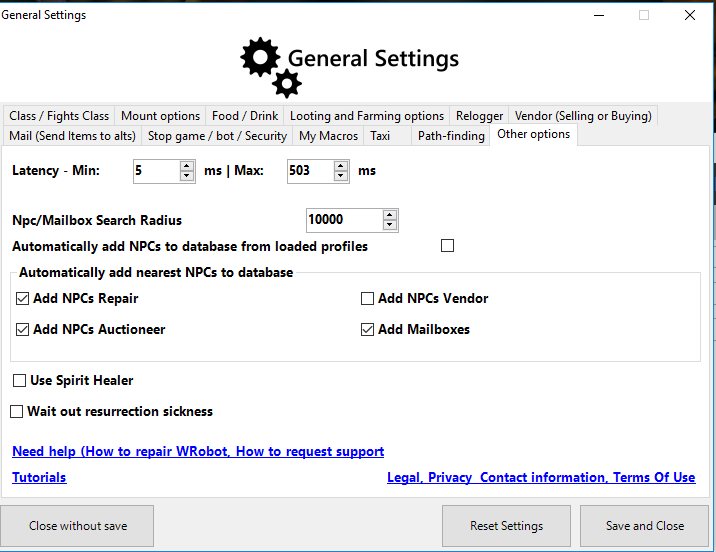
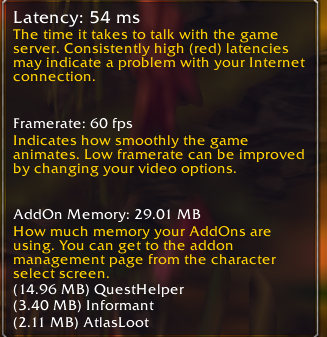
  8. My real MS is between 200-242, so what would you reccomend off putting in, or is this MS to bug te let the bot skin directly after a mob kill? thanks for advice btw. And indeed the server is HG. Edit The bot seems to skin now properly.
  9. Well i adjust the Latency so the minimum is lower, doesnt seems to work atm. It however does skin mobs which are already dead, hope this helps.
  10. The bot won't skin automatically when it killed a mob. Tried to look for a solution but couldn't found an option, also the plugin from below doesn't seems to work. Seems like the bot doesn’t take the time to skin.
  11. Go @ enter advance settings, you will find it there

Account

Navigation

Search

Search

Configure browser push notifications

Chrome (Android)
  1. Tap the lock icon next to the address bar.
  2. Tap Permissions → Notifications.
  3. Adjust your preference.
Chrome (Desktop)
  1. Click the padlock icon in the address bar.
  2. Select Site settings.
  3. Find Notifications and adjust your preference.