




UPDATED: This needed updating as the way bots work has been updated by discord. Changes include:
- You cannot have the word "discord" in your bot name - this will make it just not work. Either rename it or create a new application/bot
- Slash commands! No longer use the . prefix. Now you would use /say instead of .say
- Bot scope - when inviting your bot to your server you need to have the bot.commands scope.
- Guild ID requirement - this is a bit of laziness from me but this is now a setting you need to set up before using the plugin. Included in the guide at the bottom.
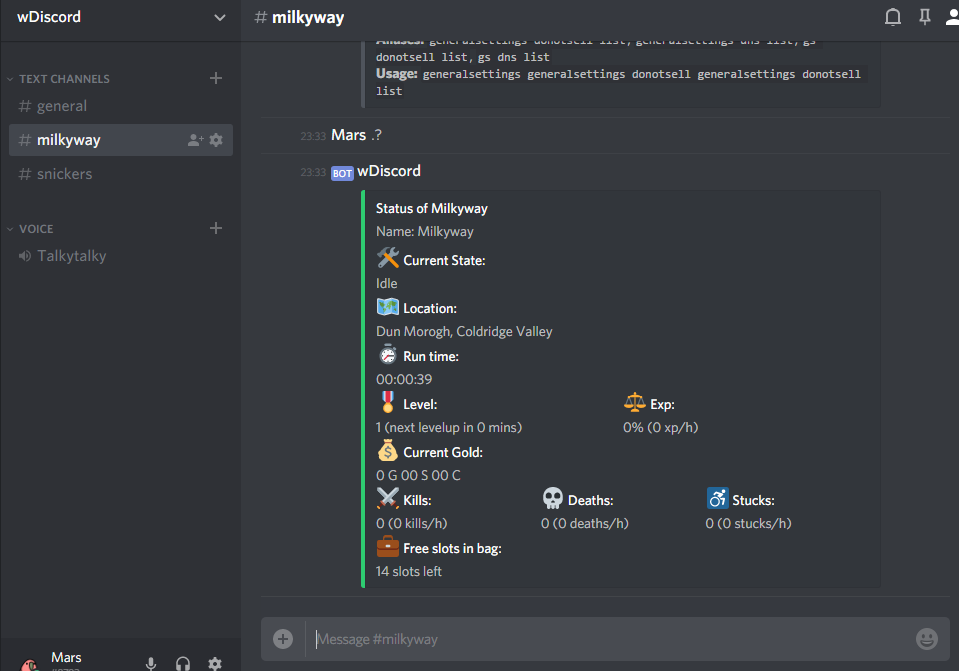
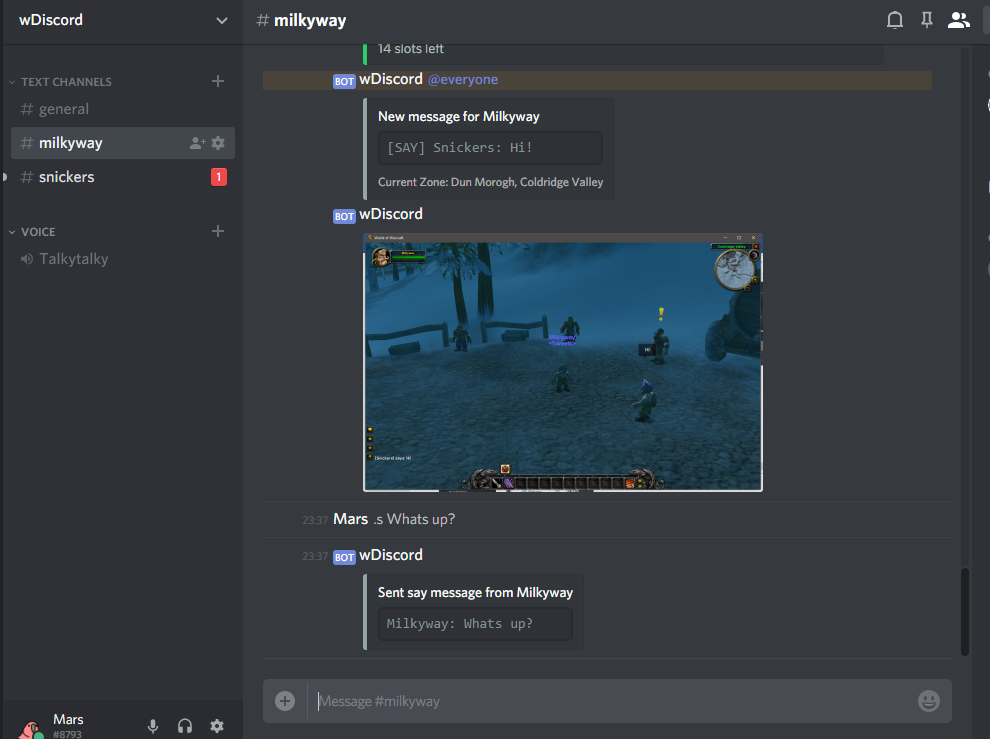
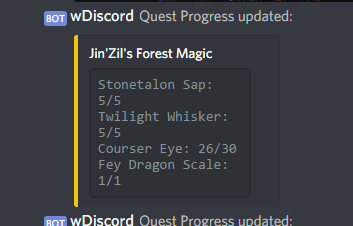
wDiscord is a 2 way discord and WRobot integration bot, you will receive alerts to your chosen discord server and channel when in game events such as whispers, deaths and trade requests, etc. happen. You can also then respond to these alerts and a variety of ways via commands in discord. This is the spiritual successor of wDiscordAlert, a free 1 way discord alerting plugin, if you don't need to send commands you can find it here: https://wrobot.eu/files/file/1510-wdiscordalert/
Feature list:
Multi-char monitoring and commands on one (or multiple) discord server(s)
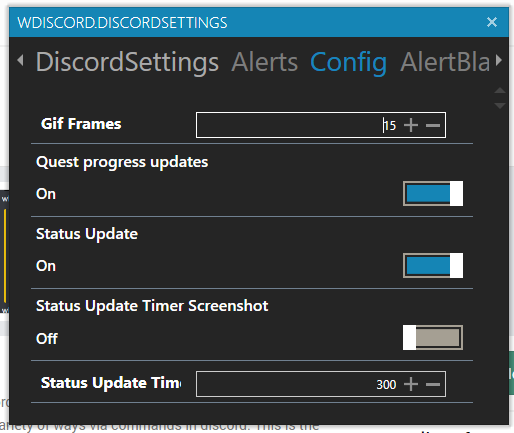
Status update on timer
Simple setup (just a bot for both ways, no webhooks like wDiscordAlert)
Event alerts (bot will send a message to discord):
- Say
- Emote
- Whisper
- Party
- Guild
- Party invite
- Duel request
- Trade request
- Guild request
- Player death
- Player stuck
- Configurable alert prefixes (@everyone, etc.)
- Configurable alert screenshots
- Configurable alert area blacklists for say/emote (default contains some capital cities)
Commands:
- status
- setup
- say
- party
- whisper
- reply (to lastest whisper)
- channelsay
- macro (TBC and above only!!!)
- reloadui
- screenshot
- gif
- hearth
- stop bot
- start bot
- pause bot
- resume bot
- accept request (such as party invite)
- decline request
- leave party
- logout
- exit game
- Do a to town run
- Product (like battlegrounder/quester) - list,set
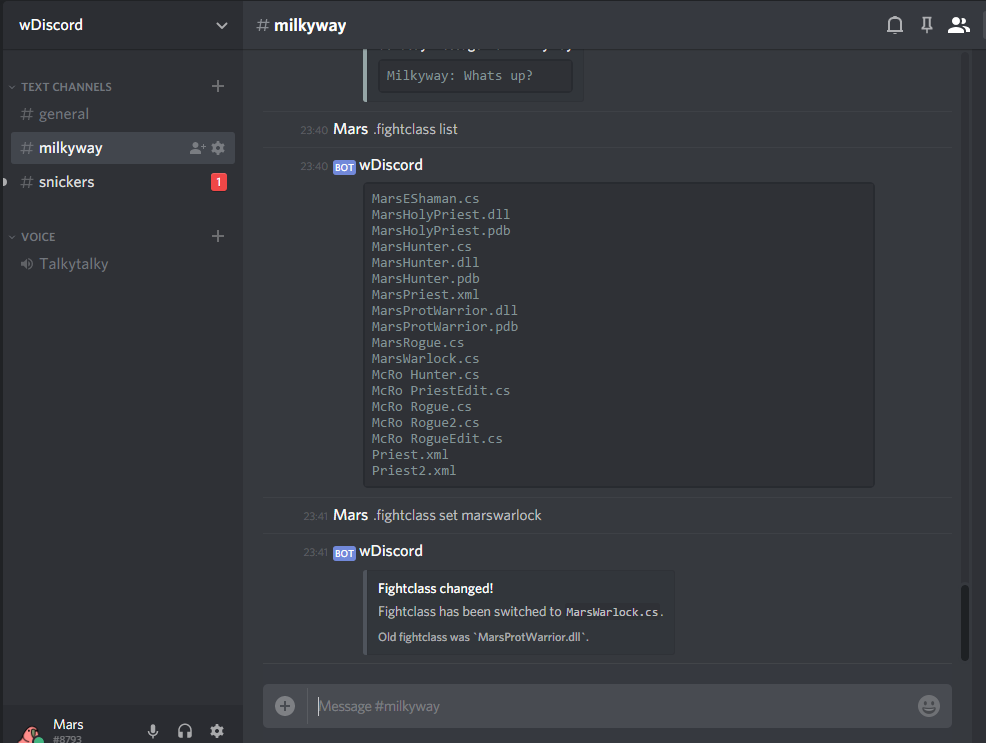
- fightclass - list,set
- profile – list (set coming soon)
- bag - list
General Config Commands:
- groundmount
- flyingmount
- foodname
- drinkname
- drinktoggle
- drinkpercent
- foodpercent
- selltoggle
- repairtoggle
- sellrarity
- donotsell - add,remove,list
- forcesell - add,remove,list
- mailtoggle
- mailrecipient
- donotmail - add,remove,list
- forcemail - add,remove,list
Getting started:
At the bottom of the below guide it tells you to invite the bot via a URL. You now need to include bot.commands into the scope. You can do this by going to the URL generator as seen here.
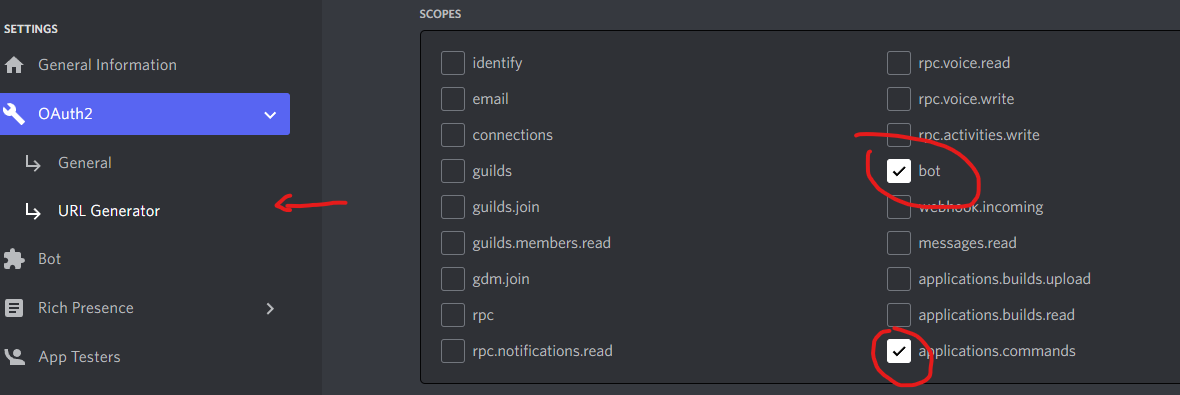
If you don't have this you may need to kick and re-invite your bot with the URL generated at the bottom of this page.
Start by creating your discord bot user as illustrated in these screenshots and notes: https://imgur.com/a/xqA1YS7
Place the wDiscord.dll file into your plugins folder and start up the bot, go to plugins, enable wDiscord and select settings at the bottom.
In the settings enter your discord bot token which we noted down in the guide above. YOU NOW ALSO NEED TO ADD THE GUILD ID. To get this make sure developer mode is enabled in your discord settings (Settings>Advanced>Developer Mode). You can then right click your discord server name or image and click on Copy ID.
Outdated Video showing the above: https://streamable.com/946x9
Run the bot, in the wrobot log you should see it starting up (the bot user will also come online on your discord server).
Go into the channel you wish to use for your character and run the .setup Charname command.
If all is working well it should respond on discord saying the setup has been applied and prompt you to restart wrobot.
Everything should now be setup ready.
To run commands, use / and start typing the command, it should look like this:

Changelog:
2018
27th June - Updated with command to list bag items (.bag list) and an issue with ppl unable to purchase from Rocketr
2nd July - Updated with command to show professions levels (.profs), stopped status spam if disconnected and added a setup tutorial video to the getting started
8th July - Updated with Quest objective tracking & automatic clearing of the screenshots folder on startup.
28th August - Updated with a .setup command, see new getting started, added a .gif command to send yourself a short gif of ingame! (also some small fixes and better logging) https://gyazo.com/ce1bdf5180e426fd8d26480c492ccffe
1st October - Found a bug I introduced which caused a few errors on status/screenshots. Also added 3 new commands, .reloadui, .channelsay (eg. .channelsay 1 Barrens chat 4evaaa!) and .macro (include the slash to use). Marco only works for TBC upwards, no vanilla im afraid.
2019
19th April - Substantial re-write, updated settings style, added auth, added auto updates, updated help command. More features to come.
29th May - More filters on what messages to alert on (requested by user)
2022
Made free
Edited by Marsbar
Updated to V3 and commands are now run via / instead of .
What's New in Version 3.0.0
Released
Updated to conform with discord changes - this now uses slash commands.


Recommended Comments
Create an account or sign in to comment