fkrausewow
WRobot user
-
Joined
-
Last visited
-
 🌟Working 100% 🌟
 -
-
-
 Problem using Fisher Bot: [Spell] Cast 钓鱼 (Fishing) ....All other spells work fine for me. but i try fishing bot. and dont cast "Fishing" (No addons, clean gamefolder, no other plugins actives) nvm Fixed, restart wrobot and work fine...
 -
-
Any option in 2026?
-
On Capycraft work 100% I use this whitout any problem
-
WORK AMAZING! 10/10 <3
-
-
-
@Droidz Can you help us please? The bot seems work, showing coordinates, ID and a lot of other information. Suggesting it's working without any problems. But when I press "Play" the following error appears and the game insta-crash. Error: 22 ago. 2025 18H39.log.html
-
 fkrausewow reacted to a post in a topic:
How can I summon "Field Repair Bot 75B" to sell junk and repair gear?
fkrausewow reacted to a post in a topic:
How can I summon "Field Repair Bot 75B" to sell junk and repair gear?
-
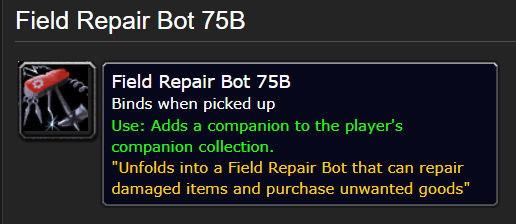
It's a spell that, when used, summons an NPC. When clicked, that NPC opens the blacksmith window, which allows you to sell and repair items. Spell ID: 46457 NPC ID: (Entry: 50041 )
-
 Skemez reacted to a post in a topic:
How can I summon "Field Repair Bot 75B" to sell junk and repair gear?
Skemez reacted to a post in a topic:
How can I summon "Field Repair Bot 75B" to sell junk and repair gear?
-
@Droidz You can help us please.
-
Skemez reacted to a post in a topic:
How can I summon "Field Repair Bot 75B" to sell junk and repair gear?
-
I got a companion called "Field Repair Bot 75B", which works like a simple blacksmith—it sells junk and repairs gear. I want to be able to summon it whenever my bags are full so I can sell trash without having to walk back to town every time. Plus, it’d be great to repair my gear. Game Version: 1.13 Vanilla Dev Info: (Id found: 46457, Name found: , NameInGame found: Field Repair Bot 75B, Know = True, IsSpellUsable = True, IsInActionBar = True))
-
Hey! Happy to be here 🙂 I’ve been using the program for a while and it’s been awesome. Now I’d like to log in with a few characters at the same time, but my license only allows one session. Is there a way to upgrade to 3 sessions? I’m fully prepared to pay the required upgrade cost.
-
-
Work 100% Ty ^^
-
Im new in WR, how to use this file?